Environment Setup & Connectors
Environments tell Wanclouds AI where an AI Assistant operates. Connectors are how that environment is actually attached: they authorize discovery and operations against cloud accounts, on-prem fleets, device groups, or networks reached through a proxy agent.
This page describes connector concepts and the first wizard step. Step-by-step connector creation is covered in Environment onboarding and Create your first AI Assistant.
What Connectors Enable
With a valid connector, Wanclouds AI can:
- Discover VMs, devices, clusters, and related resources in scope
- Run operations that your enabled capabilities allow (monitoring queries, SSH sessions, backups, etc.)
- Stay scoped so each assistant only uses the connector (and credentials) you selected
Environment Types in the Wizard
When You Create or Edit an Assistant, Step 1: Environment Selection asks for:
- Assistant Name (required) and optional Description
- Environment (required) — for example On-premise Infrastructure & Devices, IBM Cloud VPC, or other supported types available in your workspace
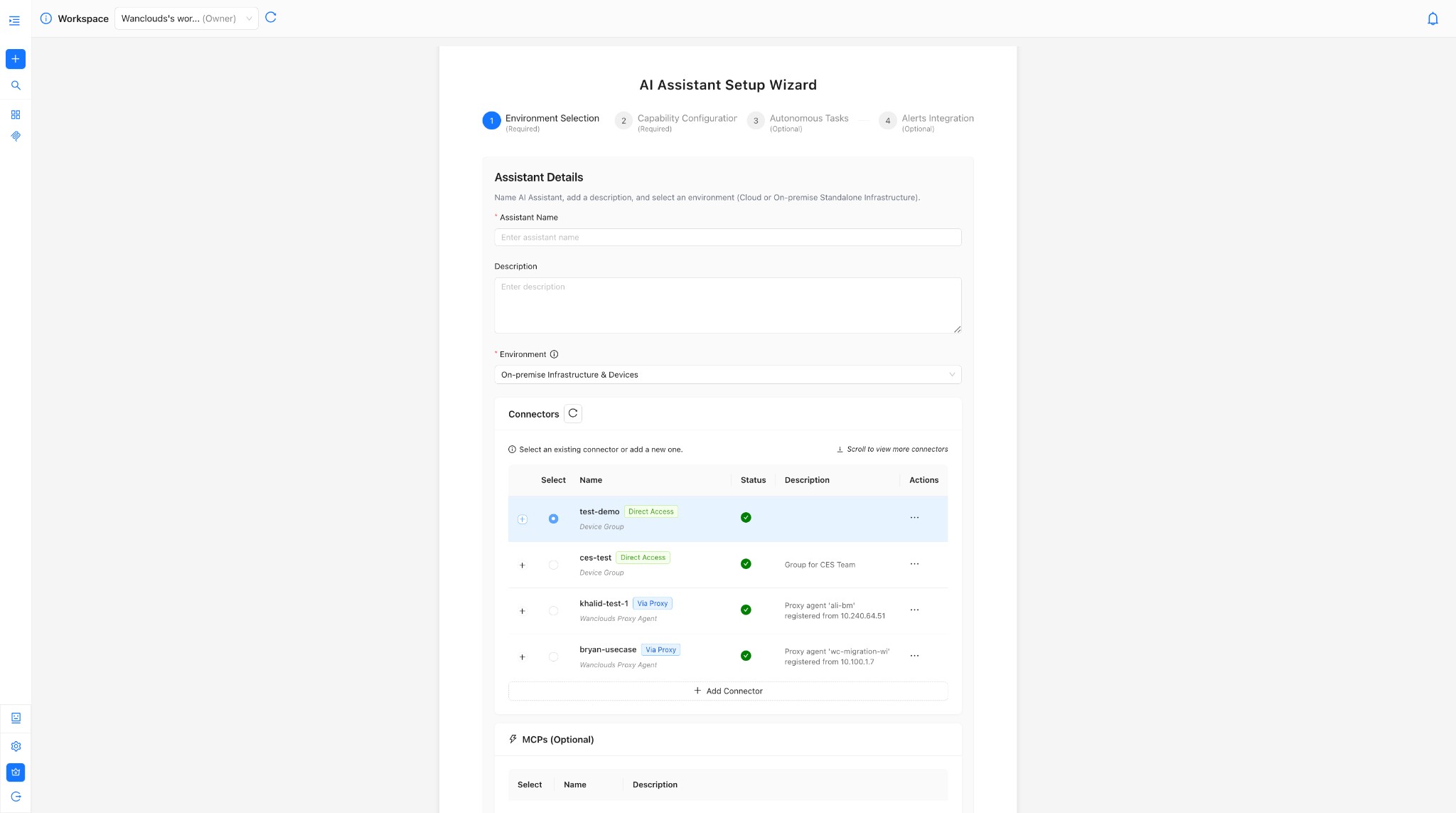
Use + Add Connector when no suitable connector exists yet; you will walk through registration, credentials, and validation as required for your environment type.
Validate Before You Continue
Before moving to capability configuration:
- Confirm the selected connector shows a healthy status.
- If you use a proxy agent, verify the agent is online and matches the connector description (name/IP).
If validation fails, fix connectivity or credentials from Settings → Connectors, then retry.
Optional MCPs on the Same Step
MCPs extend the assistant with external systems—commonly metrics, logs, or alerts—without replacing the core connector. Examples you may see include AWS CloudWatch, SolarWinds, and others configured for your tenant.
- MCPs are often optional when you already have a strong connector-backed footprint.
- Some assistant modes may require at least one MCP; the wizard will indicate mandatory selections.
Use + Configure MCP to add integrations; details vary by integration. See MCPs.
After environment setup: discovery
Once the assistant is saved with a healthy connector, Wanclouds AI can discover resources in that connector’s scope. Further screens or chat flows may ask you to pick specific VMs, clusters, or policies depending on the capabilities you enable next.
Related documentation
- AI Assistant Overview — Concepts, supported types, and full user flow.
- Getting Started: Connect Cloud — Connector onboarding procedures.