Register and Login
Wanclouds AI lets you register and login with Google, IBM, or email. New accounts go through a short request-your-invitation process and admin approval before you get full access. This page explains your options and the approval flow.
Explore Your Register and Login Options
Go to wanclouds.ai and click Login or Register in the top-right corner. You’ll see:
- Continue with Google
- Continue with IBMid
- Email and Password
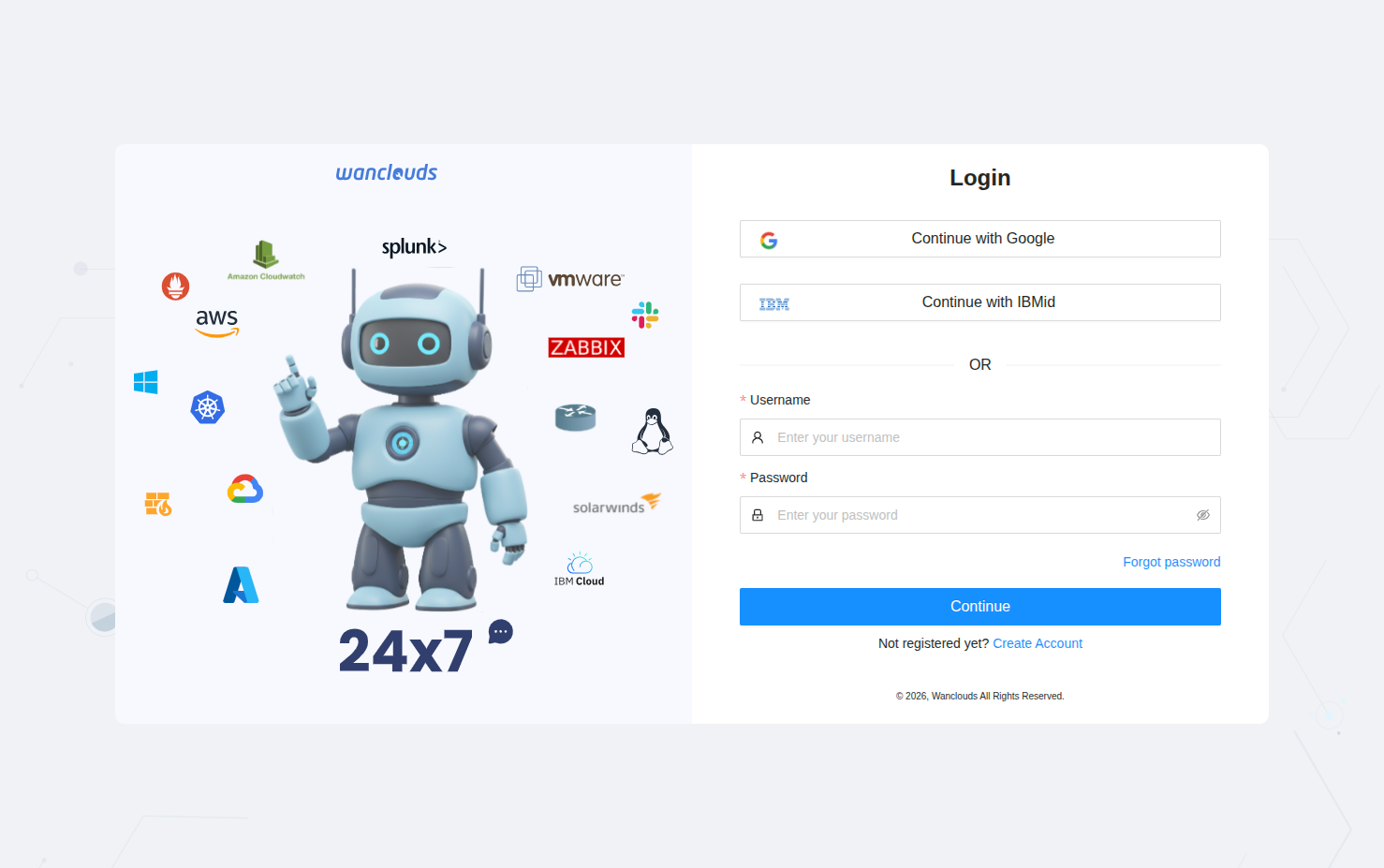
Register
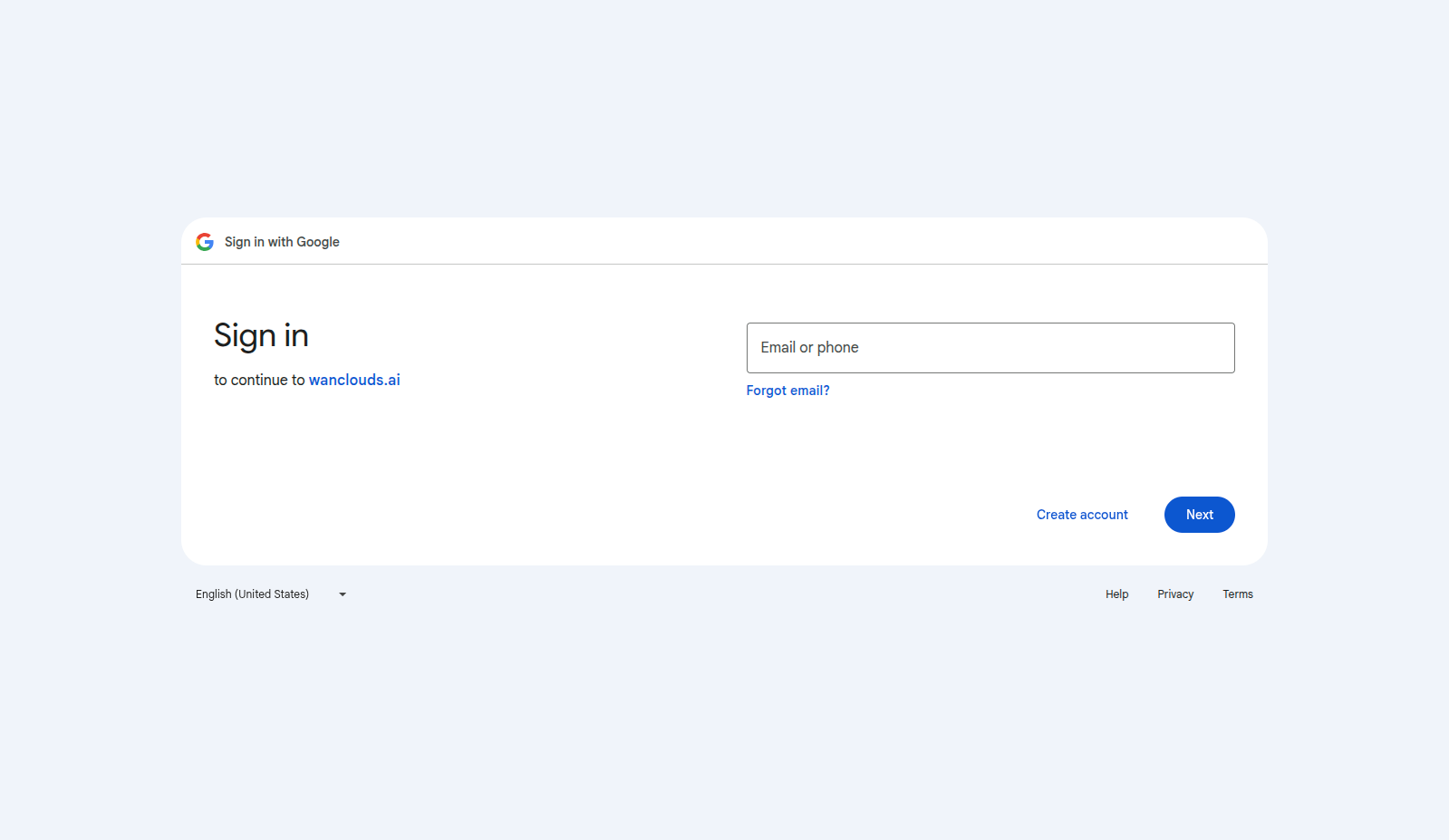
With Google
- On the login page, click Continue with Google.
- Login with your Google account when prompted.
- Your Wanclouds AI account is created and you’ll be taken through the approval process.
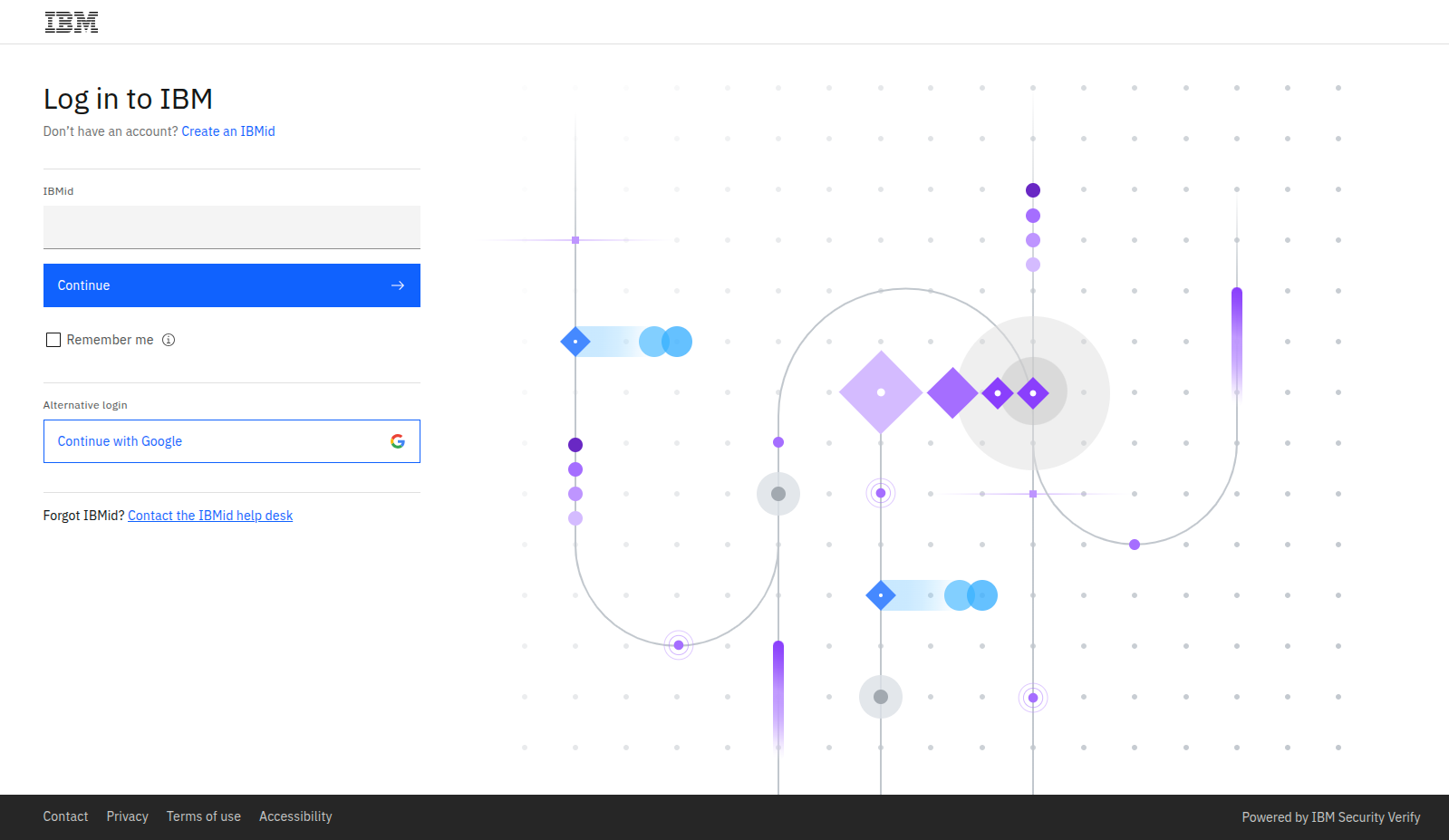
With IBM
- On the login page, click Continue with IBMid.
- Login with your IBM credentials when prompted.
- Your Wanclouds AI account is created and you’ll be taken through the approval process.
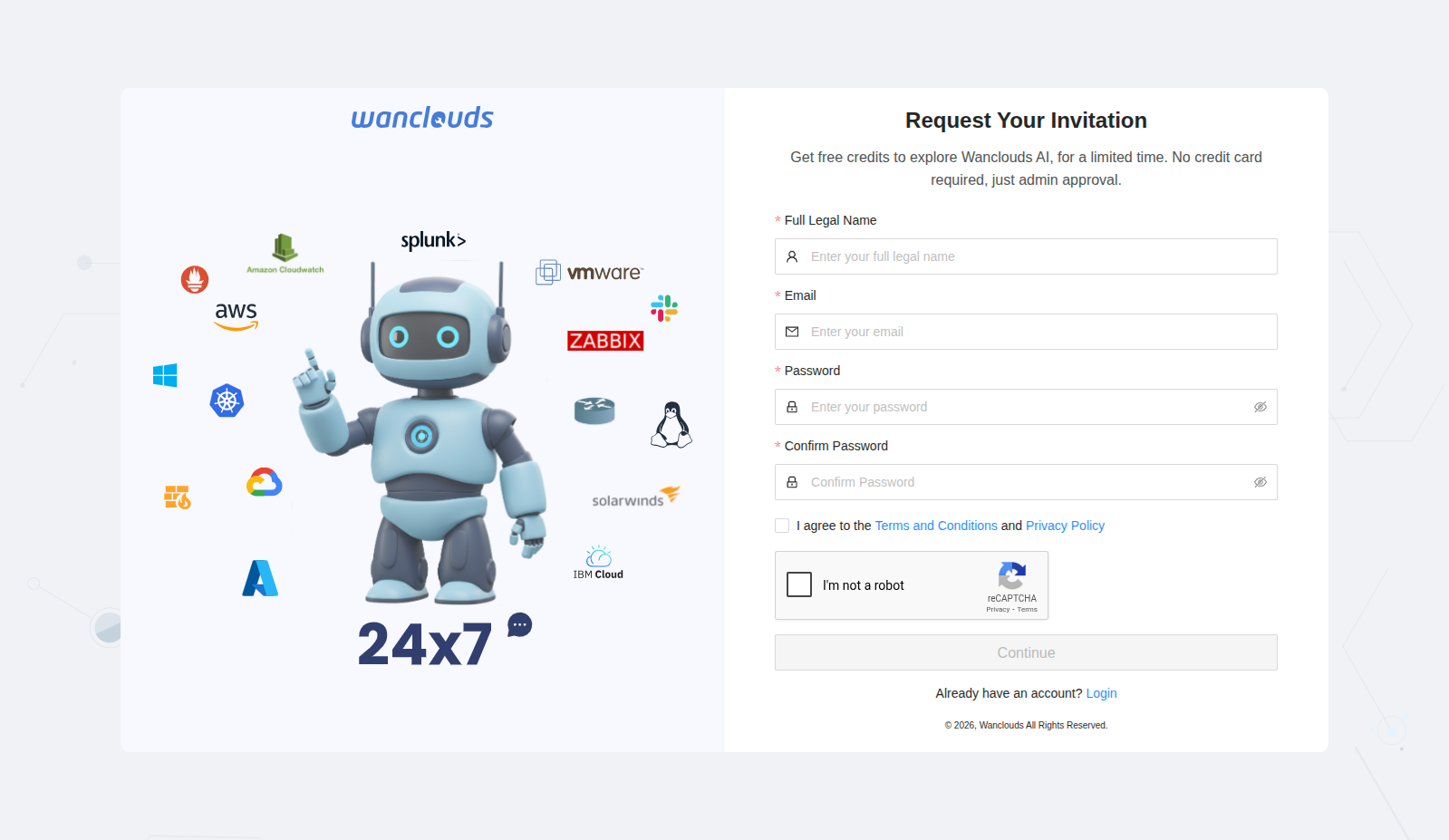
With Email
- Fill in the registration form:
- Enter your full legal name
- Provide your email address
- Create a secure password
- Confirm your password
- Accept the Terms and Conditions and Privacy Policy
- Complete the captcha verification
- Click Continue.
- Check your email for a verification message and click the verification link.
- Your email will be verified and you’ll be redirected to the login screen.
- Log in with your email and password; you’ll then see the approval status (see Request Your Invitation & Account Approval below).
If you don’t see the verification email within a few minutes, check your spam folder.
Request Your Invitation & Account Approval Process
Request Your Invitation
Get free credits to explore Wanclouds AI for a limited time. No credit card required—only admin approval.
Wanclouds AI uses an invitation-based approval process so that new users get access in a controlled way.
- After you register (Google, IBM, or Email), your account is in pending approval.
- When an administrator approves it, you’ll get an account approval email.
- After approval, you can log in to start using Wanclouds AI with free credits.
Approval typically takes 24–48 hours. You’ll receive an email notification as soon as your account is approved.
LogIn
After you have an account approved, use the same method you registered with:
- Google — Click Continue with Google and log in with your Google account.
- IBMid — Click Continue with IBMid and log in with your IBM credentials.
- Email — Enter your email and password and click Continue.
Your browser may remember your session. If it expires, you’ll be redirected to the login page.
What Happens After Login?
Your experience depends on whether your account has been approved.
Pending Approval
If your account is not yet approved by an administrator, you’ll see a Pending Approval screen:
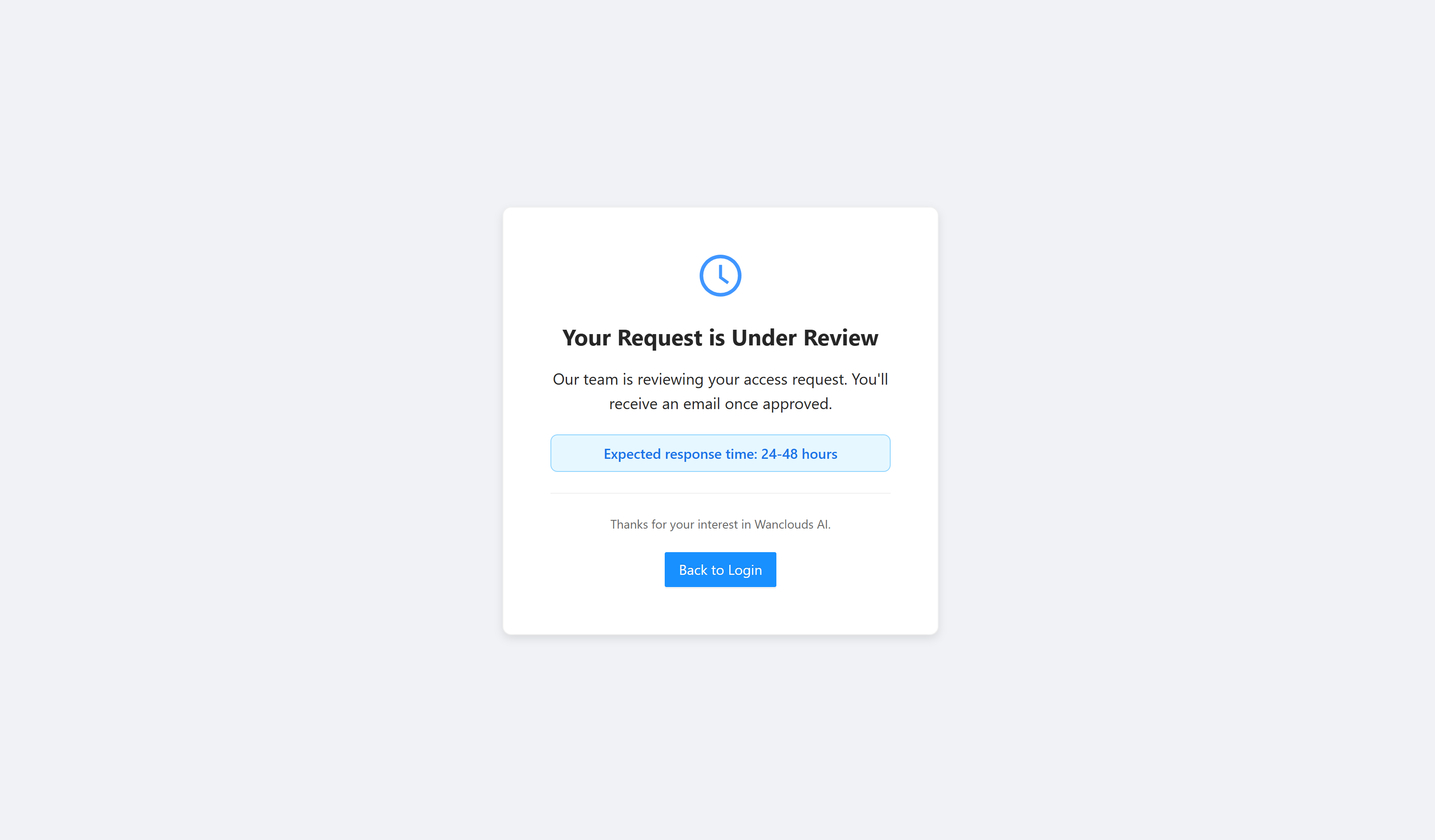
Please wait during the approval process. You’ll receive an email when your account is approved.
Account Approved
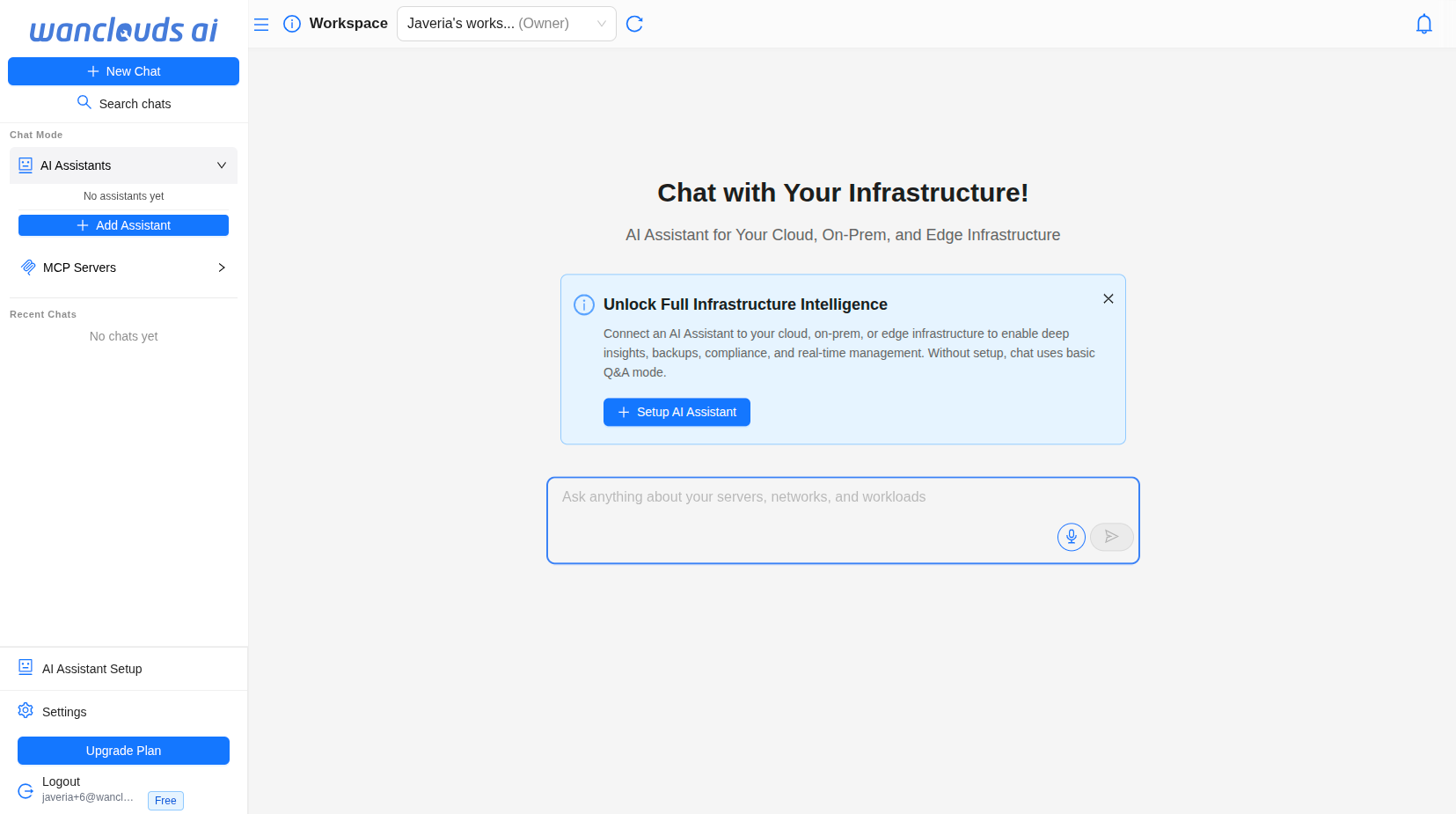
Once an administrator has approved your account:
- When you log in, you’ll be redirected to the dashboard.
- You’ll have free access to the Wanclouds AI.
Troubleshooting
Can't Access Account
- Forgot Password — Use the "Forgot Password" link on the login page.
- Email Not Verified — Check your email (and spam) for the verification link.
- Still Pending Approval — If it’s been more than 48 hours, contact support to check your approval status.