Data Controls
Manage how Wanclouds AI stores, retains, and handles your conversation history and account data. These controls give you full visibility and authority over what is kept and how it can be exported or removed.
Available Data Controls
By default, Wanclouds AI saves your conversations so you can review them later, continue previous sessions, and maintain context across interactions.
The Data Controls page provides four workspace-level actions that apply to all conversations: archiving, exporting, viewing archived chats, and permanently deleting.
You can access these controls by clicking Settings → Data Controls in the sidebar or directly by /settings/data-controls url.
Archive All Chats
Archiving moves all conversations out of your active chat list without destroying them. This is a reversible, non-destructive operation.
To archive all chats:
- Go to Settings → Data Controls in the sidebar or go to
/settings/data-controlsurl. . - Click the Archive button.
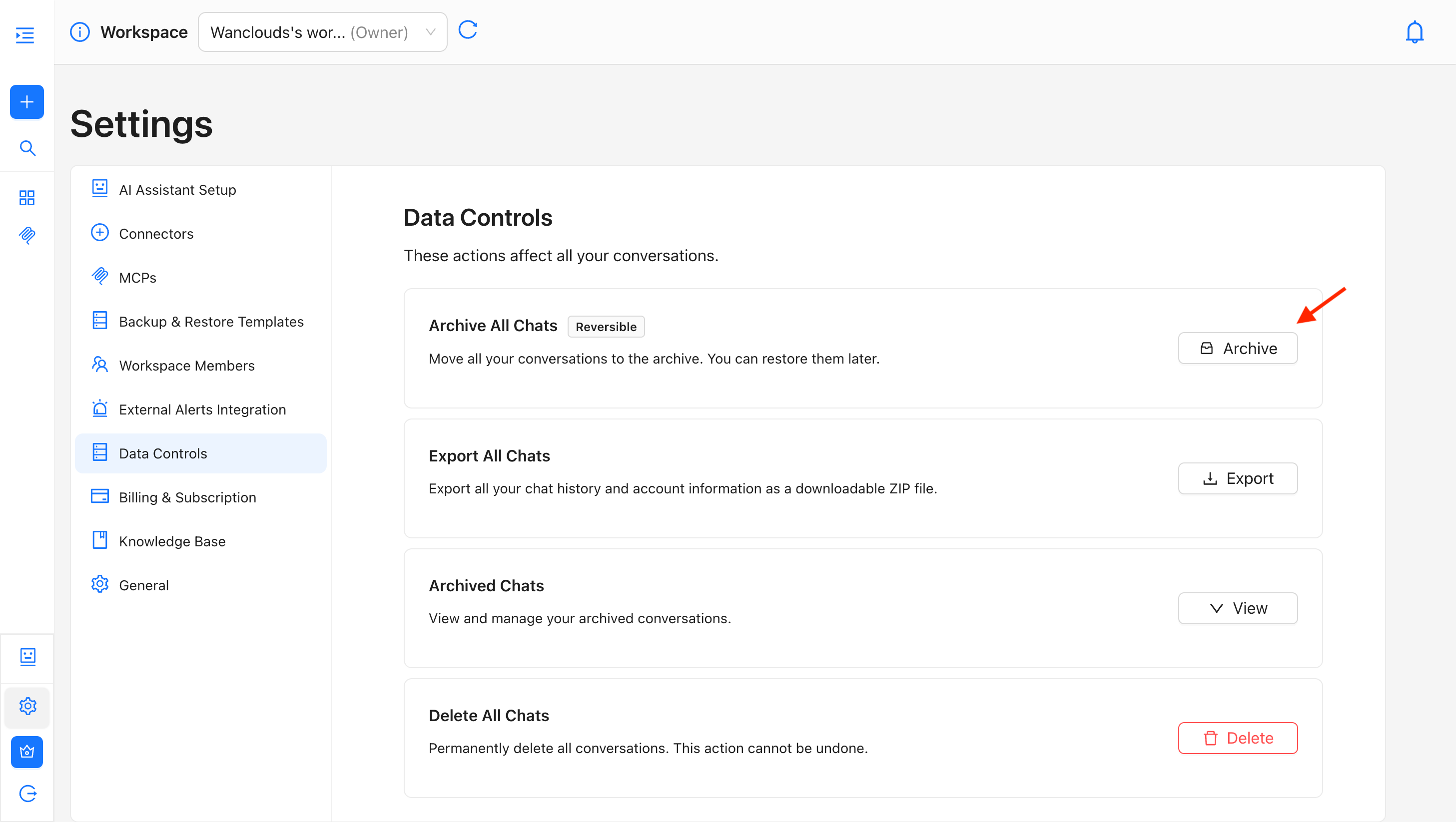
- A confirmation dialog appears: "Are you sure you want to archive all Chats?"
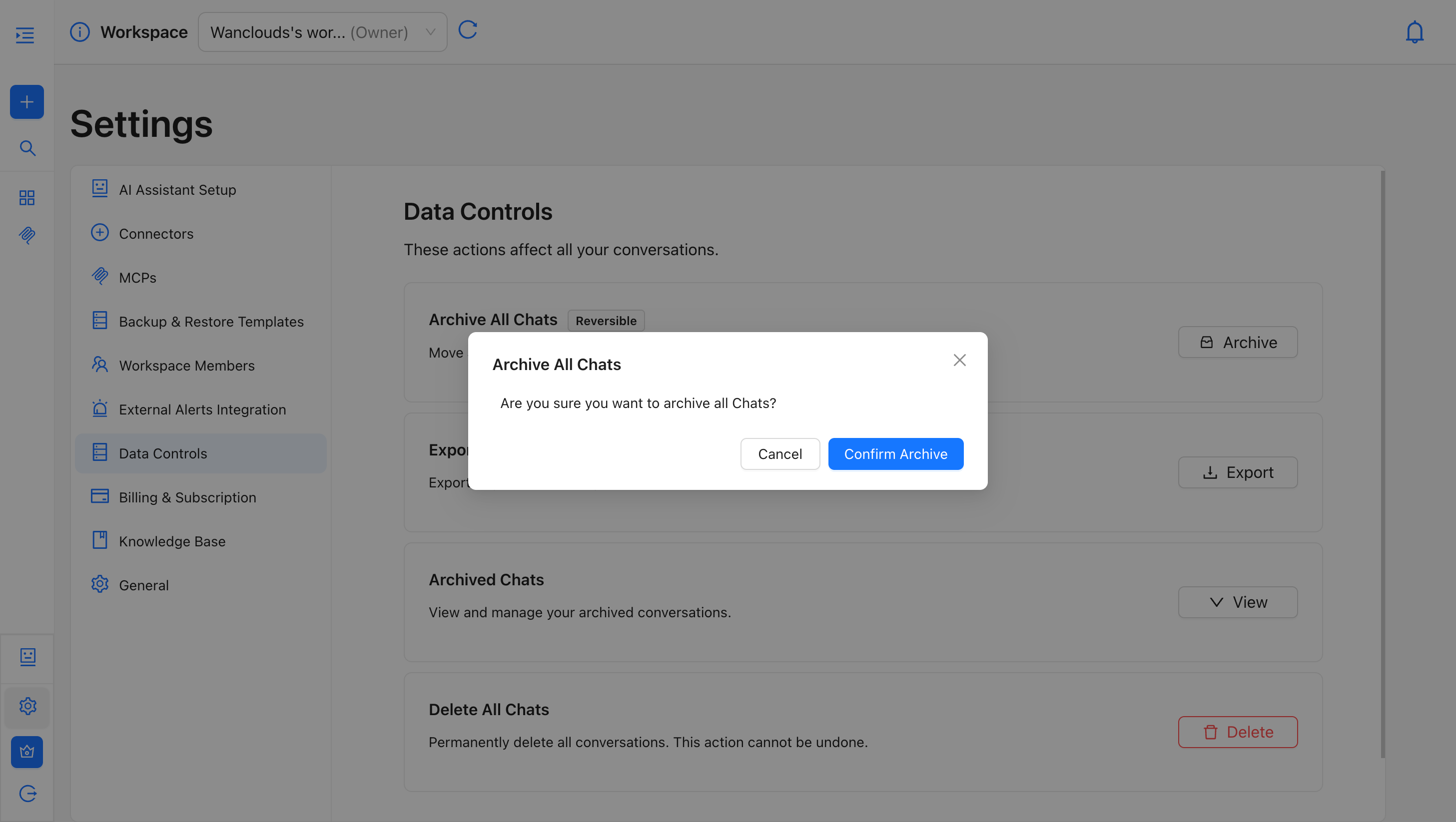
- Click Confirm Archive to proceed, or Cancel to abort.
Archived conversations remain fully recoverable and are not permanently deleted. They are only removed from the chat list.
Export All Chats
Exports a complete copy of your conversation history and account profile as a downloadable ZIP file. Use this for compliance, auditing, backups, or personal records.
To export all chats:
- Go to Settings → Data Controls in the sidebar or go to
/settings/data-controlsurl. - Click the Export button.
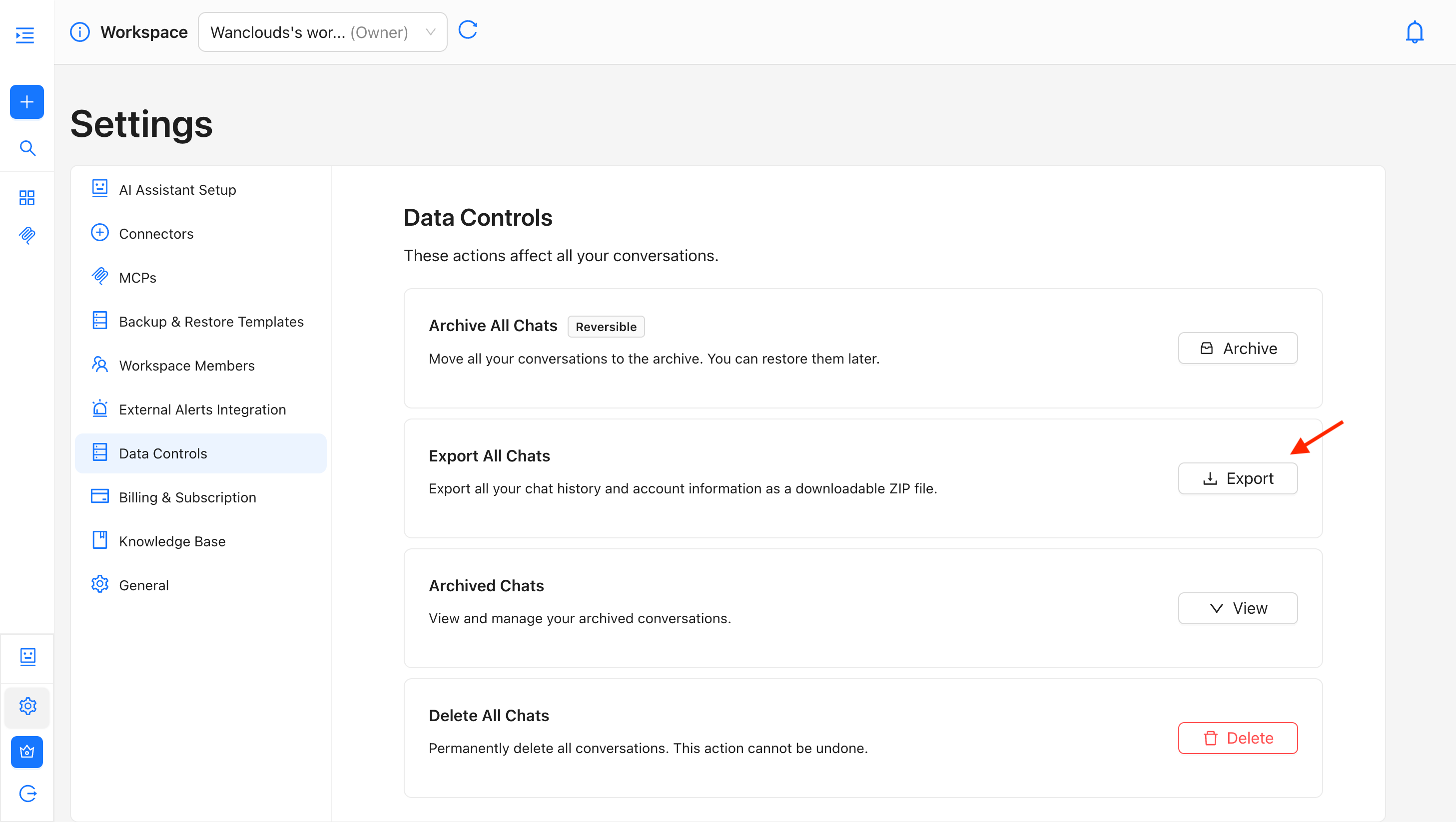
- A confirmation dialog appears: "Are you sure you want to export all Chats?"
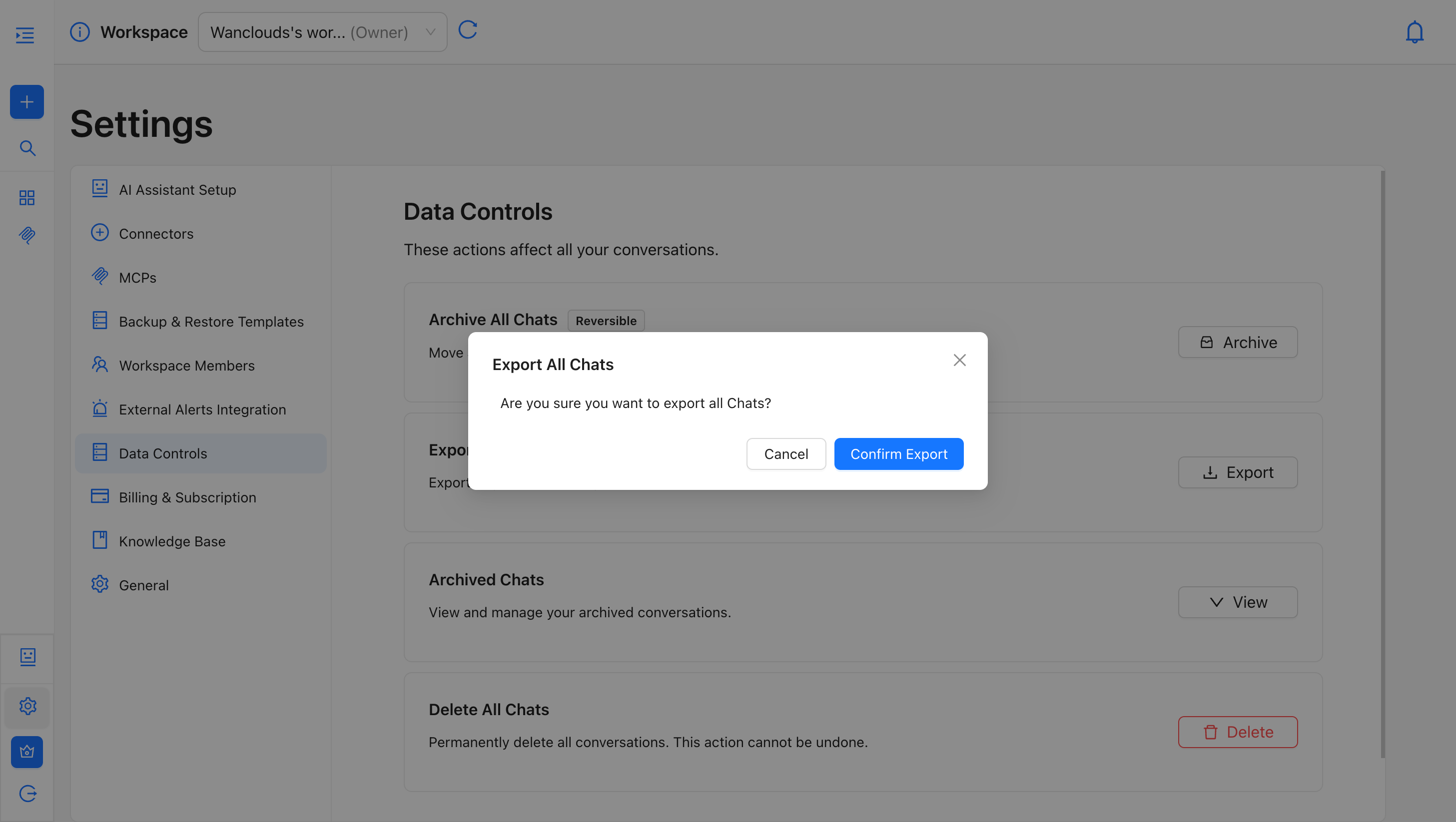
- Click Confirm Export to proceed, or Cancel to abort.
- A ZIP file will be prepared and downloaded to your device.
Export Package Contents
The downloaded ZIP file contains two JSON files:
-
chat.json: Contains the full conversation history for the workspace.
-
profile.json: Contains workspace and account metadata.
Knowledge Base documents and billing records are not included in the export.
Archived Chats
The Archived Chats section lets you view and manage all conversations that have been previously archived — either individually or via Archive All Chats.
To view archived chats:
- Go to Settings → Data Controls in the sidebar or go to
/settings/data-controlsurl. - Click the View button.
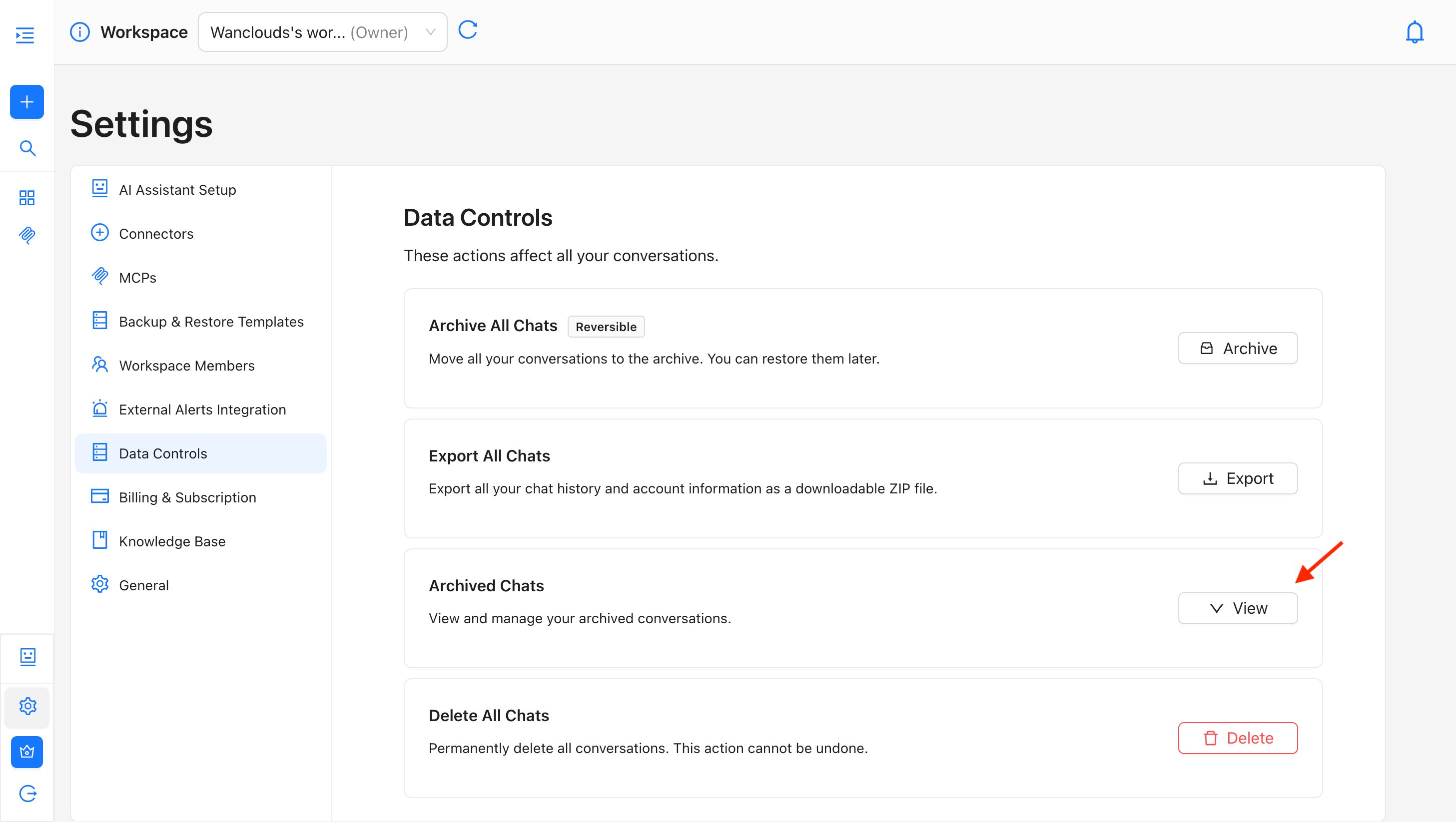
- A list of archived conversations is displayed with their names and available actions.
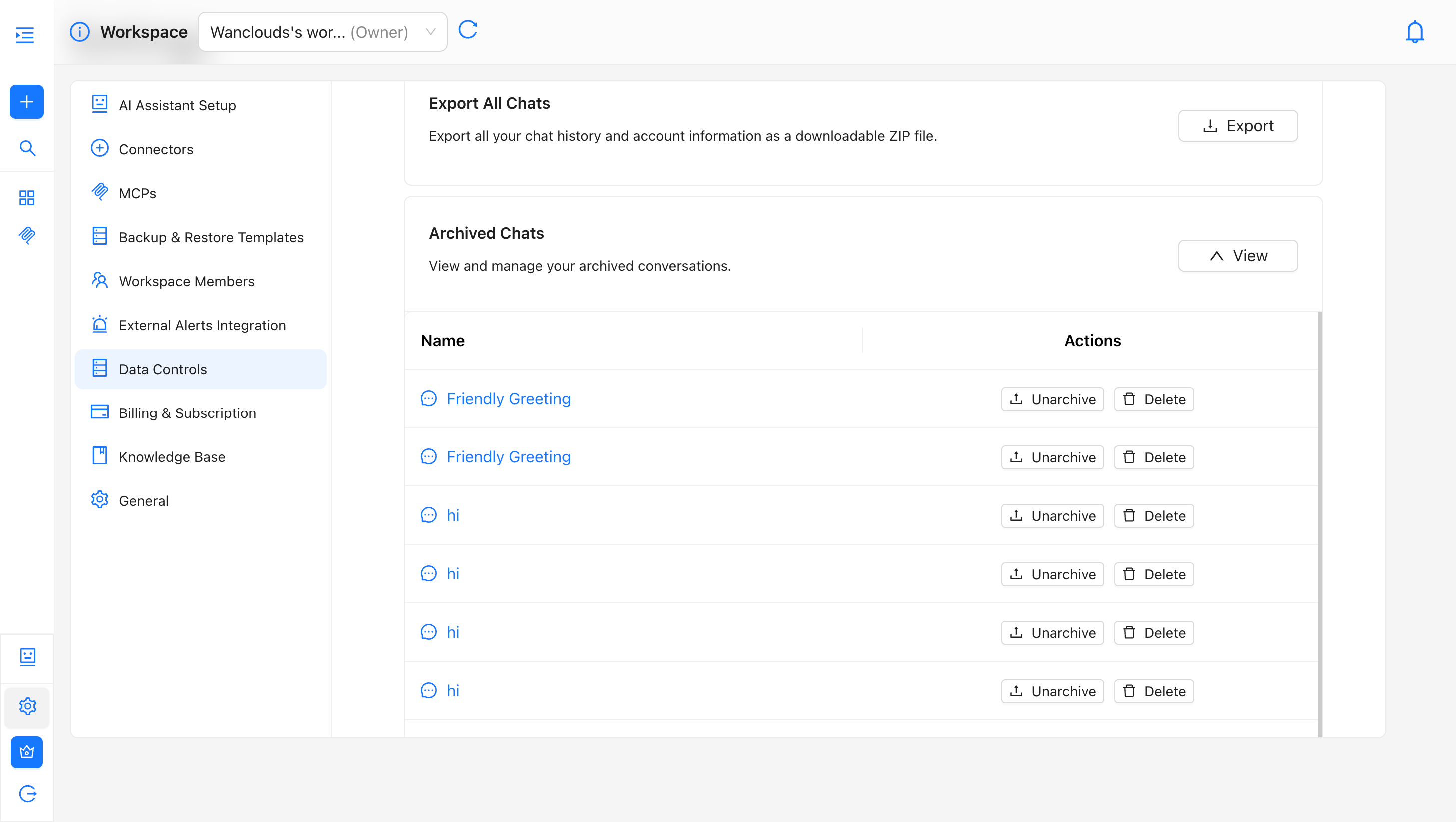
Actions per Archived Conversation
- Unarchive – Reinstates the conversation in the active chat list, restoring the full read/write access.
- Delete – Permanently removes the conversation from the system; this operation is irreversible.
Delete All Chats
Permanently deletes all conversations in the workspace. This operation is immediate and irreversible — deleted data cannot be recovered.
To delete all chats:
- Go to Settings → Data Controls in the sidebar or go to
/settings/data-controlsurl. - Click the Delete button (displayed in red).
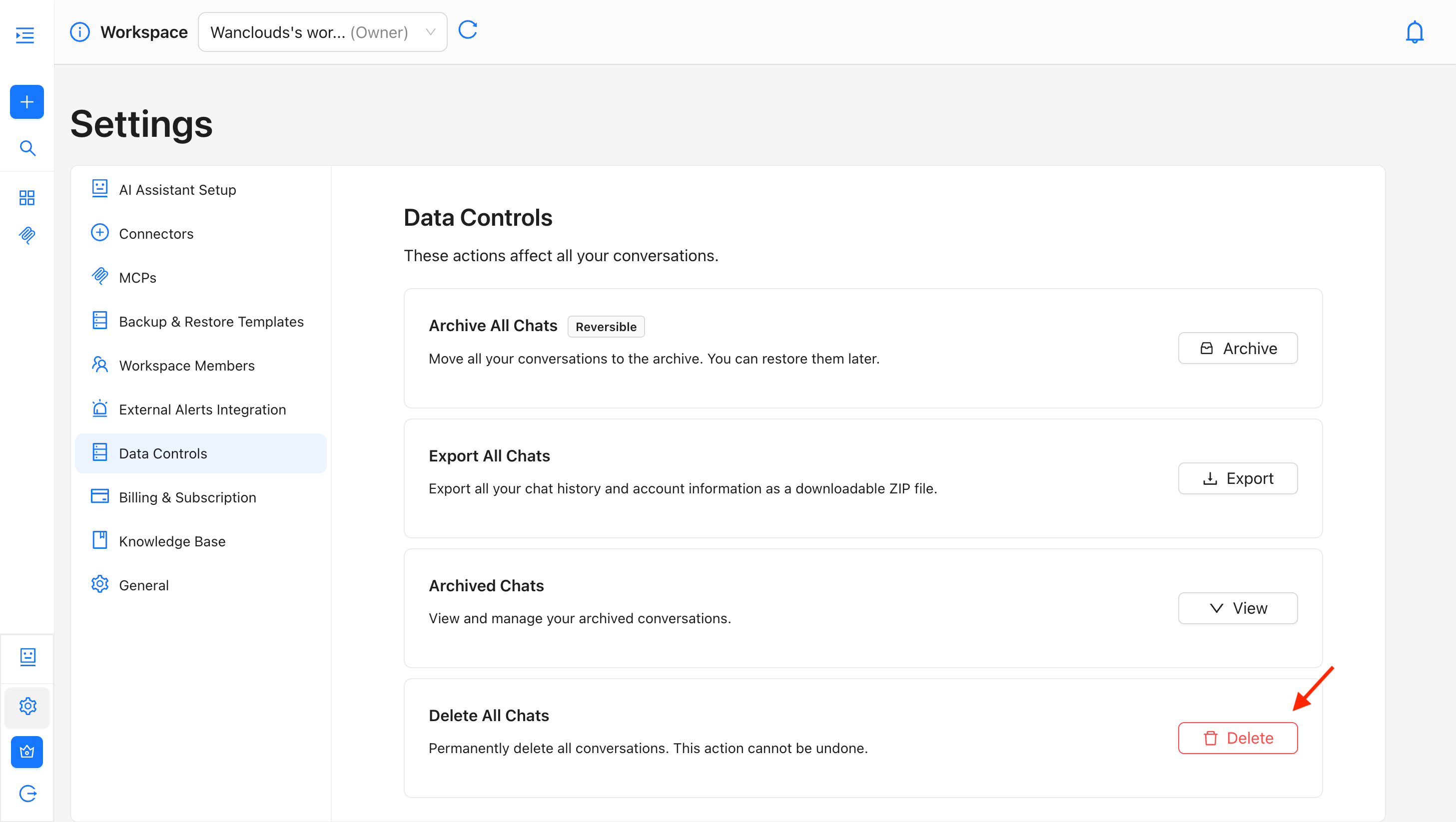
- A confirmation dialog appears: "Are you sure you want to export all Chats?"
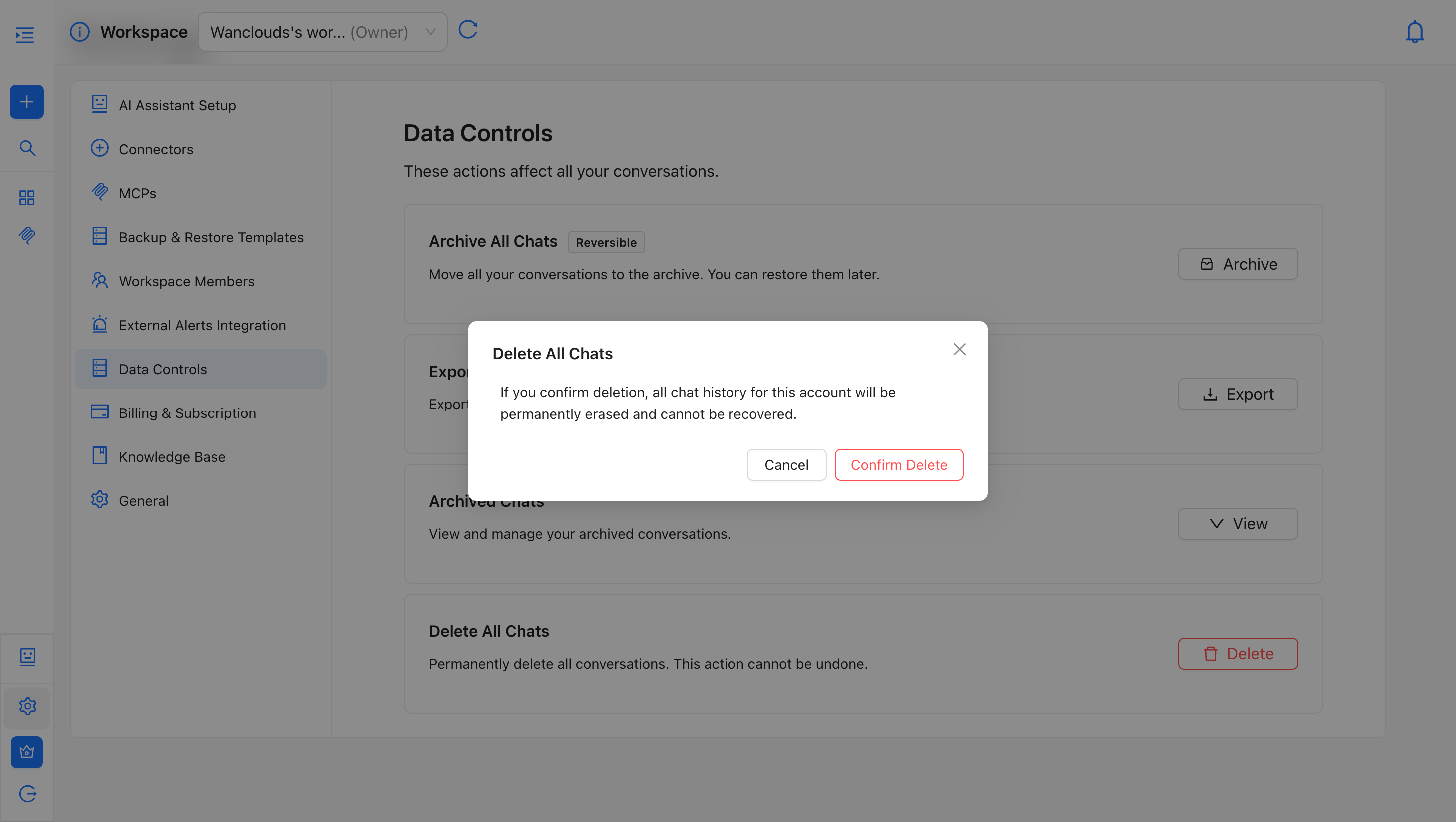
- Click Confirm Delete to proceed, or Cancel to abort.
Permanent deletion cannot be undone. If you are unsure, use Archive All Chats instead — it achieves the same decluttering effect while keeping your data recoverable.
Archive vs. Delete — Comparison
| Archive All Chats | Delete All Chats | |
|---|---|---|
| Reversible | Yes | No |
| Data retained | Yes | No |
| Visible in main list | No | No |
| Recovery | Available in Archived Chats section | Not possible |
| Recommended for | Routine cleanup, decluttering | GDPR requests, sensitive data removal |