Theme Preferences
Control the visual appearance of the Wanclouds AI interface. Choose a theme that suits your working environment or personal preference — your selection is saved to your account and persists across devices and sessions.
Available Themes
Wanclouds AI supports two interface themes.
Light Theme (Default)
The Light theme provides a high-contrast interface with light backgrounds, optimized for use in well-lit environments. This is the default theme applied to all new accounts unless changed.
Dark Theme
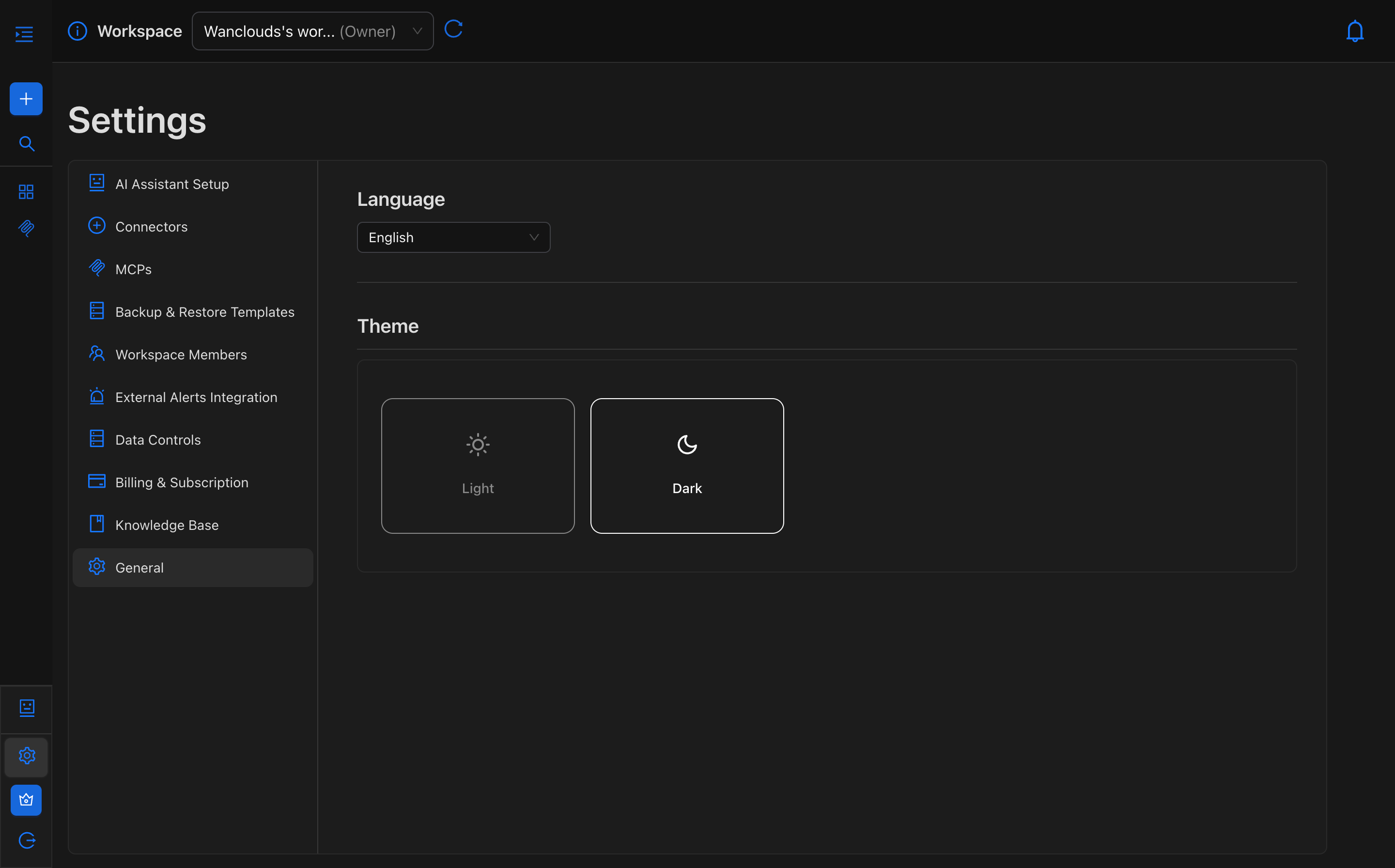
The Dark theme uses a low-luminance color scheme with darker backgrounds to reduce eye strain in low-light or nighttime environments.
Configuring the Theme
Quick Theme Switch
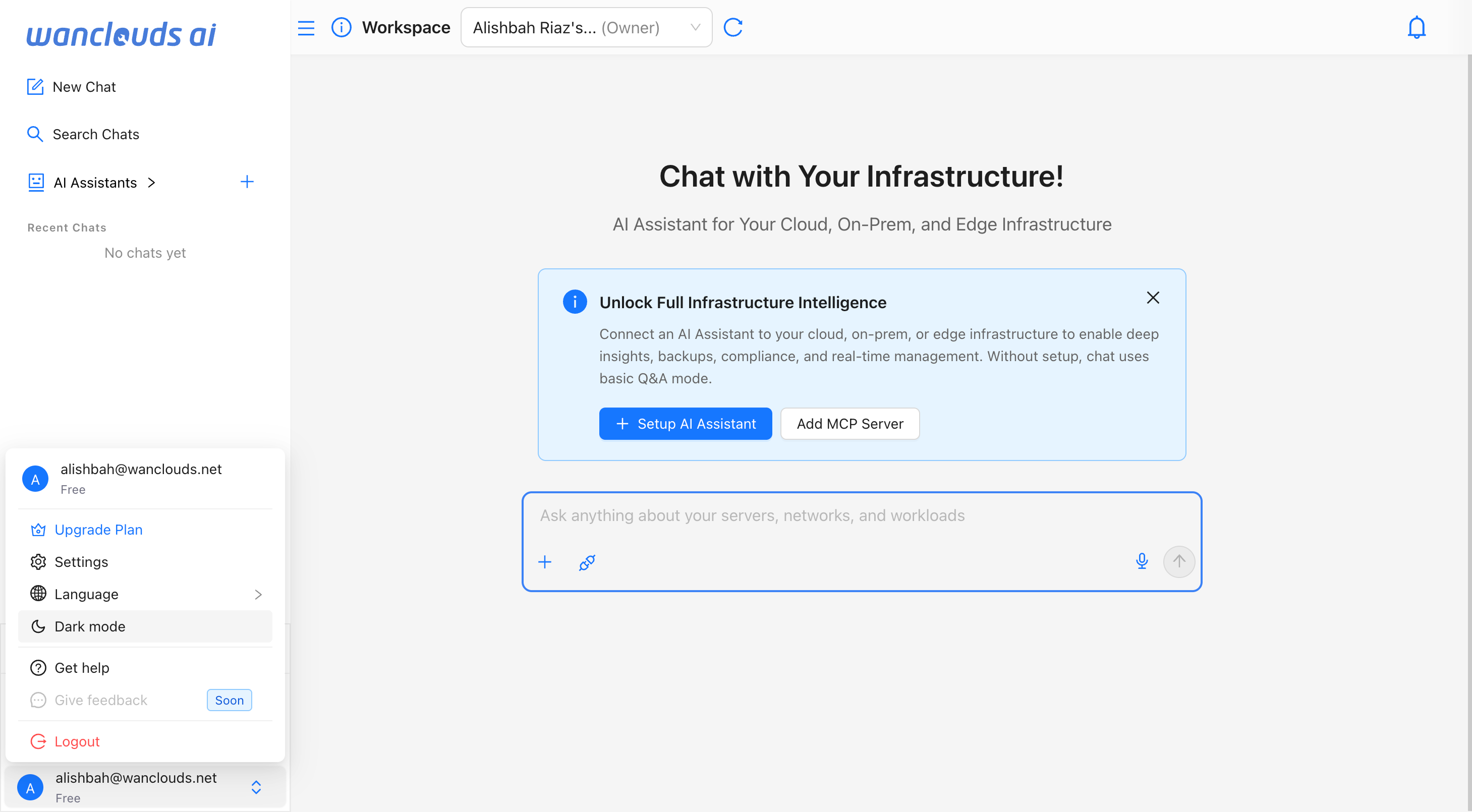
- Open the sidebar menu by clicking the username at the bottom of the sidebar.
- Click the current theme option near the bottom of the sidebar:
- Click Dark mode to switch to Dark Mode.
- Click Light mode to switch to Light Mode.
- The interface theme updates immediately without requiring a page reload.
Alternative Method Via Settings
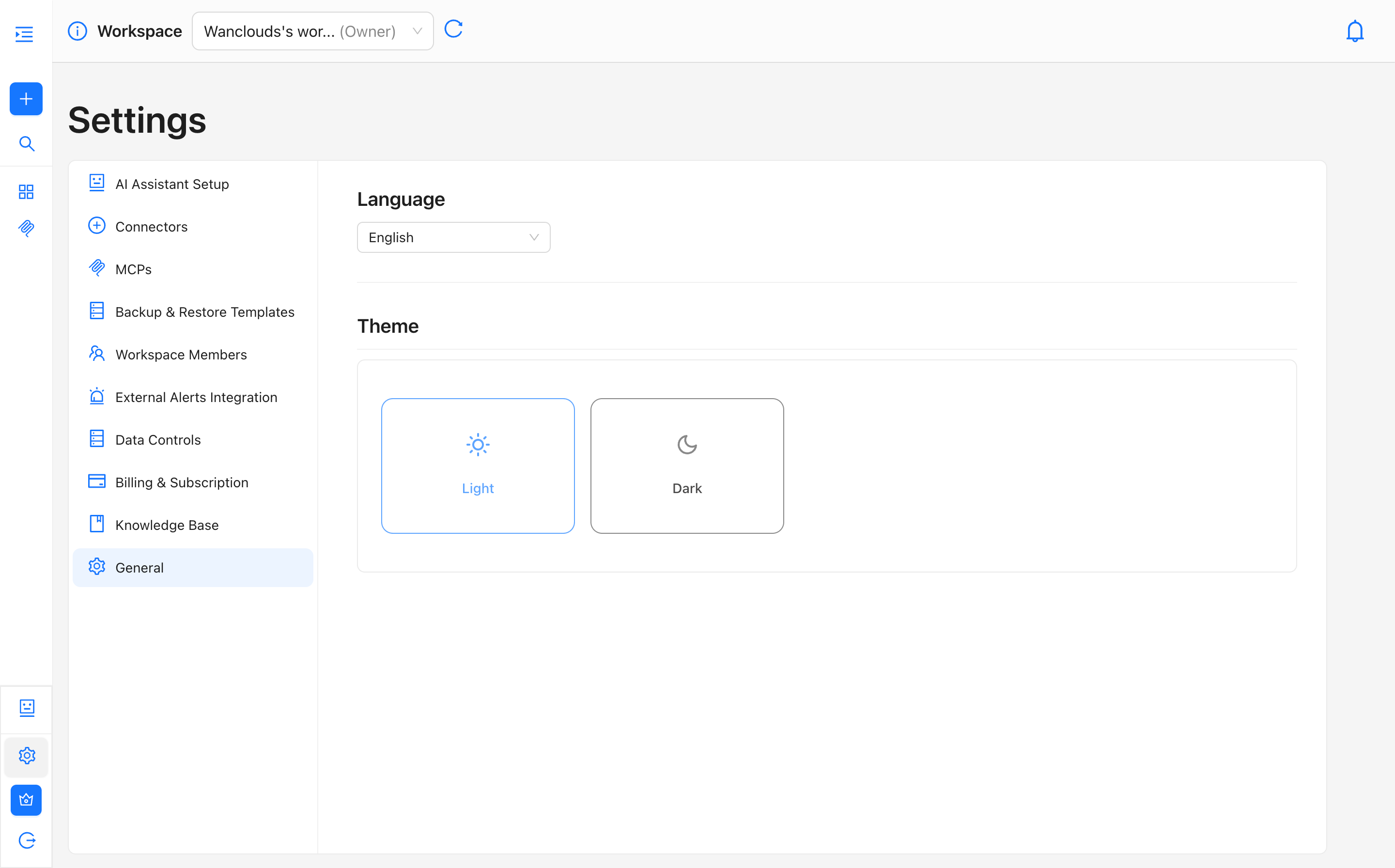
- Navigate to [Settings → General] in the sidebar or navigate directly to
/settings/general - Click either the Light or Dark card in theme section to select it.
- The theme is applied immediately across the entire interface.
info
The active theme is indicated by a highlighted border around the selected card.
Interface Behavior
- The selected theme is applied globally across the entire application.
- Theme changes take effect instantly — no page reload is required.
- The active theme persists for all subsequent sessions until manually changed.
- Only one theme can be active at a time.