Your First Chat
Learn how to start your first conversation with Wanclouds AI and begin interacting with the platform.
Starting Your First Chat
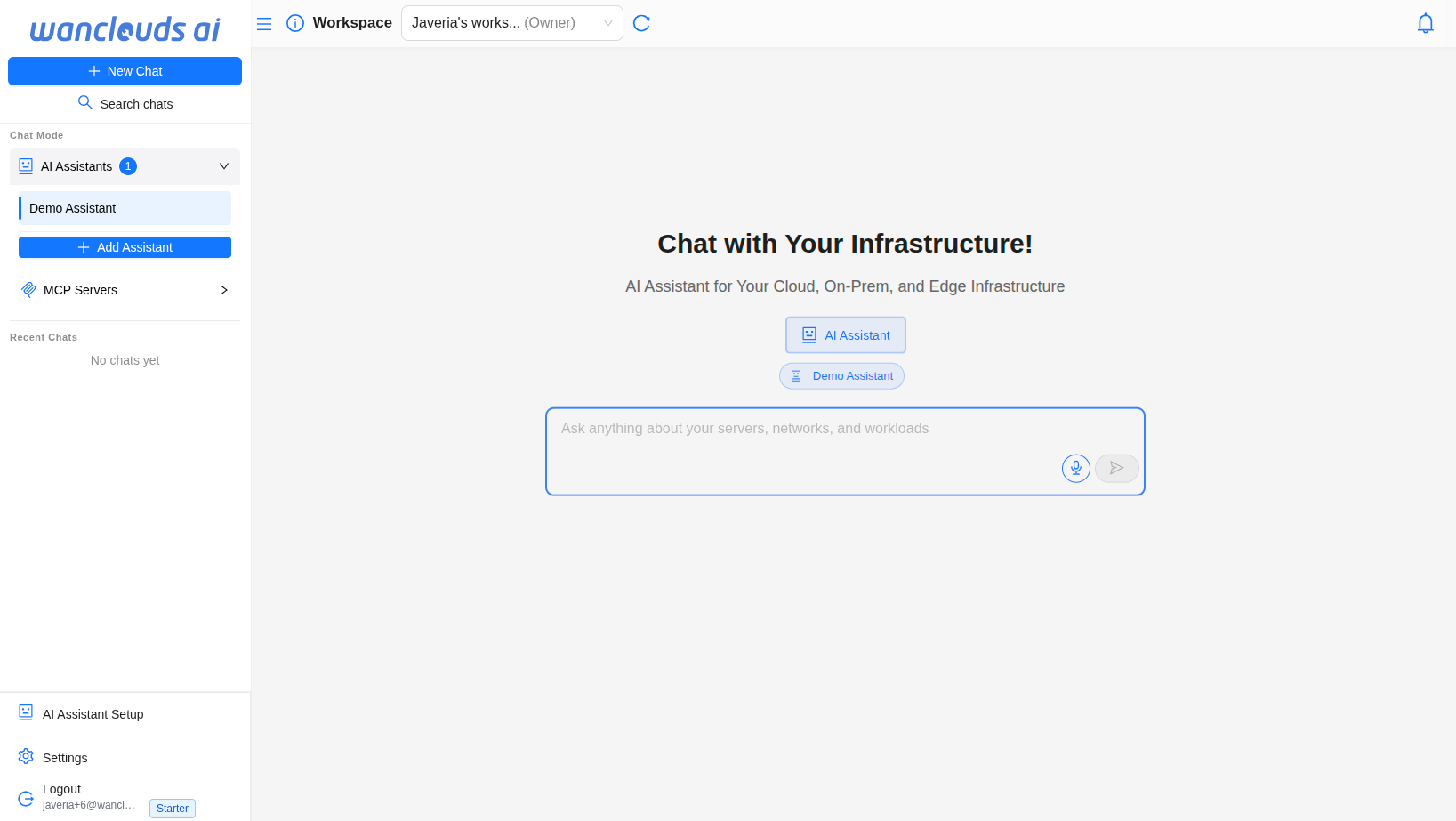
After logging in, you'll land on the main chat interface.
tip
You can begin chatting immediately using the built-in Q&A agent. For full infrastructure management capabilities, setting up a dedicated AI Assistant is required.
Step 1: Access the Chat Interface
- Once logged in, you'll automatically be redirected to the chat interface
- You'll see a chat window with a message input area at the bottom
- The interface includes:
- Sidebar - Shows your chat history and configured AI Assistants
- Chat Window - Main conversation area
- Input Field - Where you type your questions
- Select assistant from the sidebar AI Assistants list or use Add Assistant to create one if needed.
Step 2: Interact with the Assistant
- Type your message - Enter your question in the input field to begin the conversation.
- Audio messages - Use the audio input feature to send voice messages. Audio is automatically transcribed into text
info
While you can chat immediately, connecting your environment will unlock the full power of infrastructure insights and analysis.
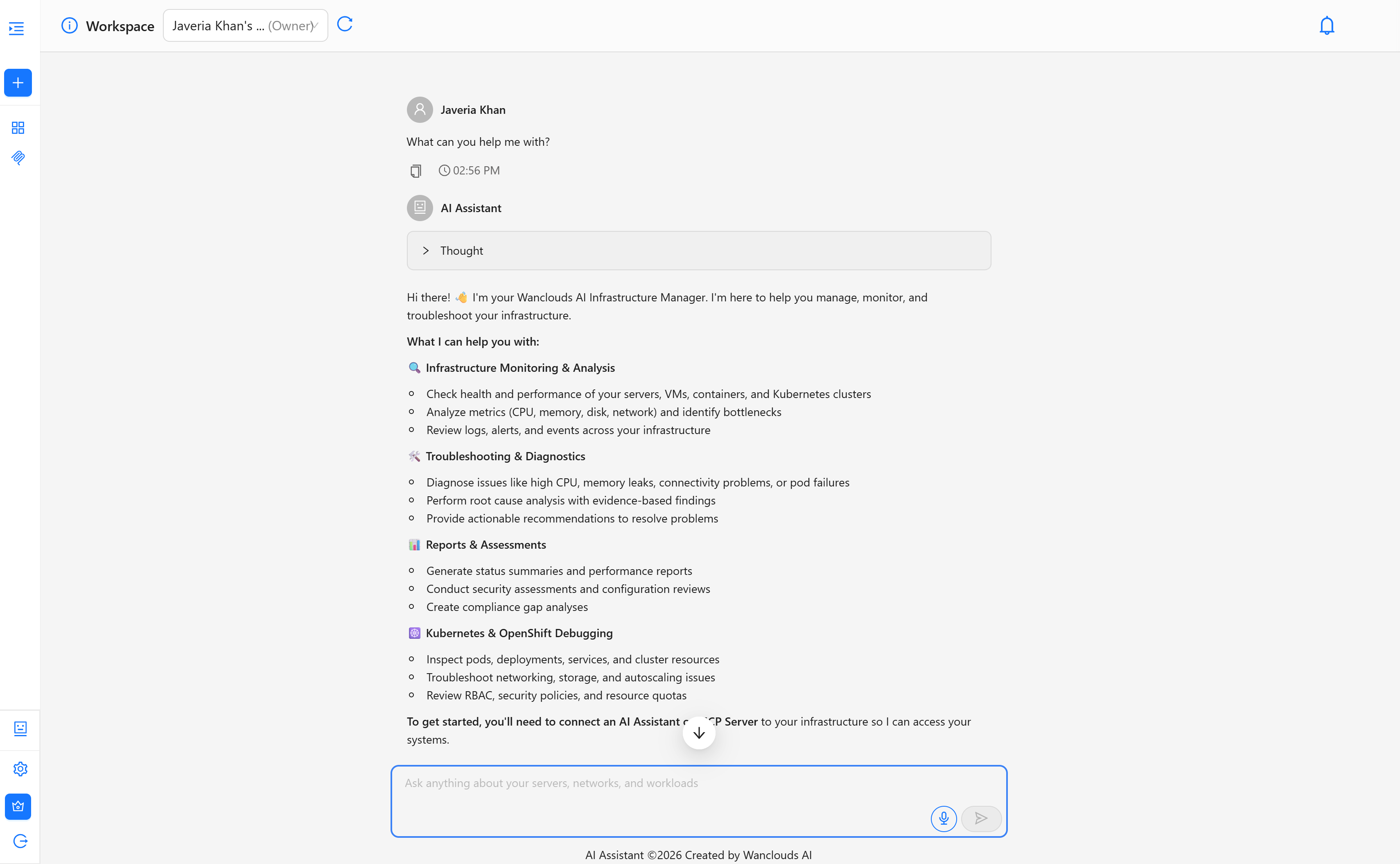
The AI assistant will:
- Analyze your request
- Generate a response in real time
- Display the results in the chat window
What You Can Ask
You can ask the AI Assistant anything — from general questions to platform-specific tasks.
In addition to general knowledge and guidance, depending on your configuration, you can:
- Explore platform features and capabilities
- Get guidance on setup and configuration
- Manage and analyze connected infrastructure
- Generate security and compliance assessment reports (SOC 2, GDPR, HIPAA)
- Infrastructure assessments and health checks
- Review alerts and performance insights
Example prompts
- "What can you help me with?"
- "What are the main features of this platform?"
- "Show me available VMs"
Tips for Better Results
- Be specific – Clear and detailed questions produce better results
- Use context – Reference previous messages when asking follow-up questions
- Use the knowledge base – Upload knowledge base documents so the AI has better context about your environments
- Refine your query – If needed, rephrase your request for more precise results
- Enable full capabilities – Connecting your environment unlocks deeper infrastructure insights
Next Steps
- Connect your Infrastructure - Learn how to connect your infrastructure
- Create an AI Assistant - Set up your first AI Assistant