Intelligent Troubleshooting
Intelligent Troubleshooting helps diagnose and resolve infrastructure issues using AI-guided analysis and, where configured, direct operational access (such as SSH) to your systems.
What It Does
- SSH Access to Infrastructure — When you enable this capability and complete tool setup, the assistant can work within the access model your organization allows (for example jump hosts or SSH Manager–mediated sessions).
- Automated Diagnostics — Collects symptoms, correlates signals from monitoring or logs when available, and suggests checks.
- Root Cause Analysis — Surfaces likely causes from configuration, resource state, and historical patterns.
- Guided Remediation — Recommends steps or runbooks; you stay in control of destructive or production-impacting actions.
Configuration Flow
- Go to Settings → AI Assistant Setup → Setup AI Assistant.
- Complete Environment Selection — Attach a validated cloud or other connector (see Environment Setup & Connectors).
- Enable Intelligent Troubleshooting — On Capability Configuration, check Intelligent Troubleshooting.
- Select Troubleshooting Tool — Choose SSH Manager.
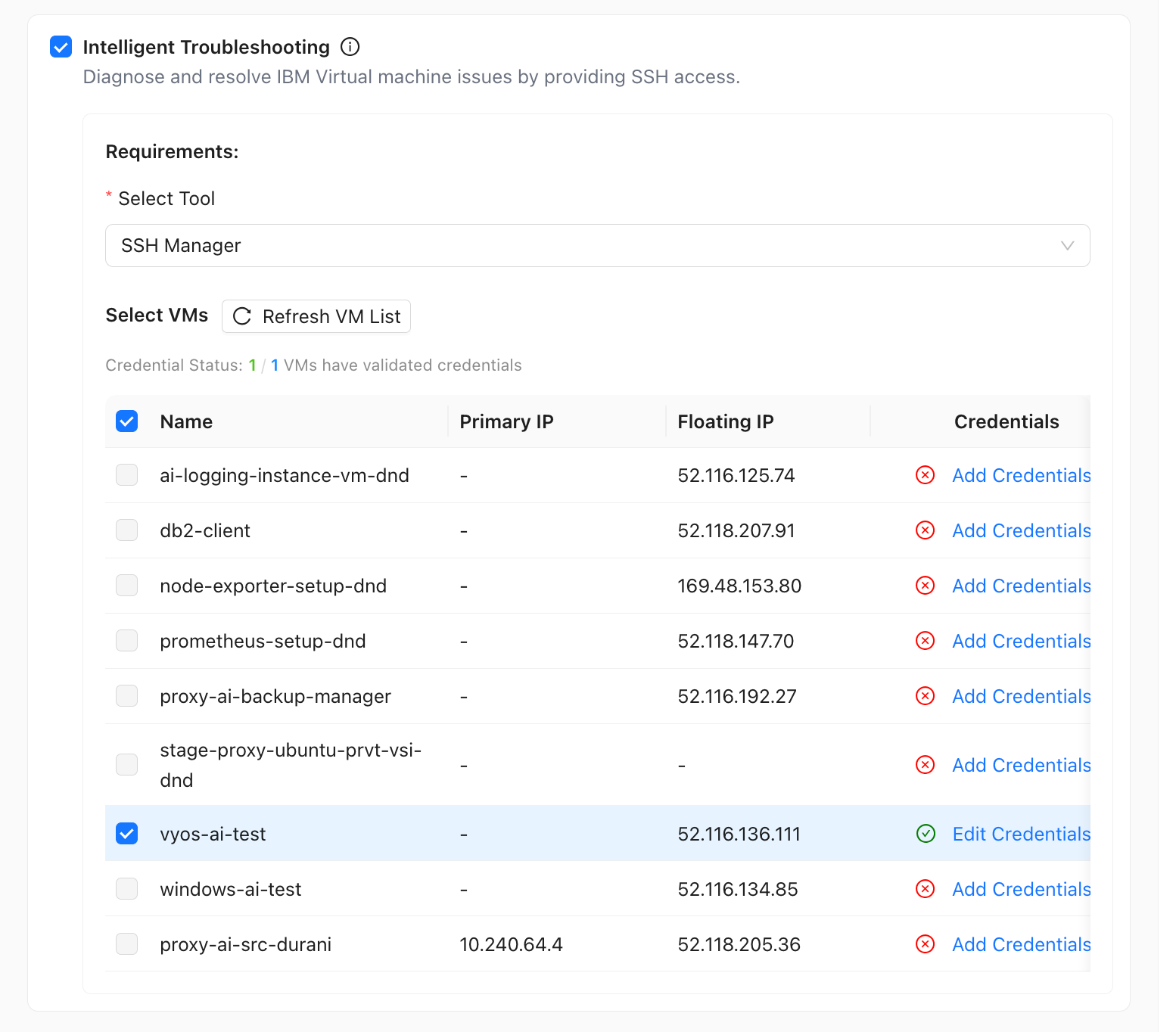
- Review Discovered VMs and Credential Status — A table of VMs from that connector appears.
- Fix Invalid Credentials — For any VM that shows an invalid or missing credential status, click Add Credentials and complete the modal until Validate succeeds.
- Select VMs — Use the checkboxes to choose which VMs this assistant is allowed to troubleshoot.
Cloud Connectors and SSH Manager
For assistants tied to a Cloud Connector (for example IBM Cloud VPC), after you choose SSH Manager under Requirements, Wanclouds AI loads discovered VMs from that connector and shows them in a Select VMs table.
- Use Refresh VM List if you have added instances or want to re-sync discovery.
- Columns typically include Name, Primary IP, Floating IP, and Credentials (Status).
- Credential status shows whether access is configured for each VM (for example a valid checkmark with Edit Credentials, or an error indicator with Add Credentials).
- Select only VMs you intend this assistant to troubleshoot; scope stays limited to your choices and valid credentials.
If a VM shows invalid or missing credentials, troubleshooting actions for that VM will not work until you add or correct credentials (see the next section) and validation succeeds.
Configure Credentials Modal
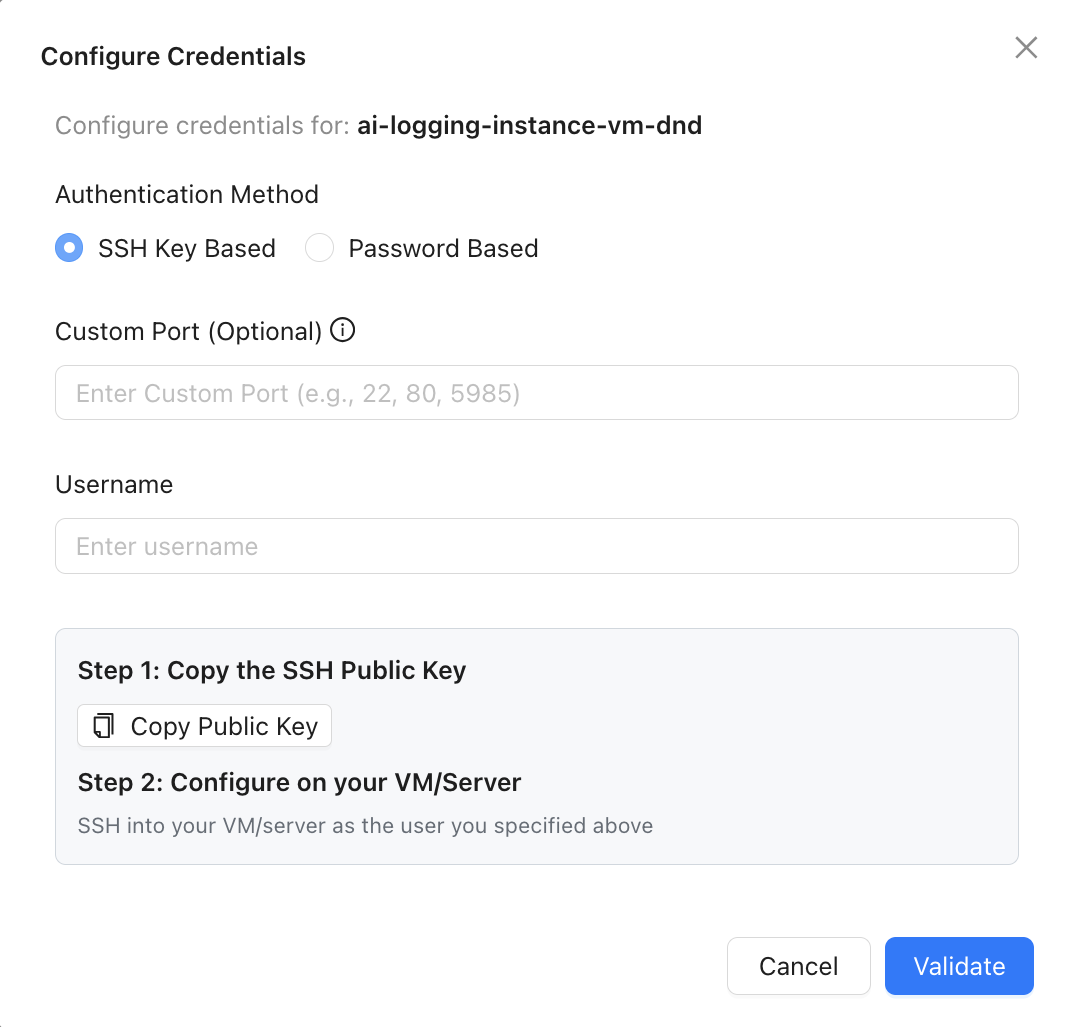
When you click Add Credentials or Edit Credentials for a VM, the Configure Credentials dialog opens for that instance.
Authentication Method
- SSH Key Based — Copy the platform’s public key (Copy Public Key), add it to the VM user’s
authorized_keysas instructed, then enter Username and optional Custom Port, and click Validate. - Password Based — Enter Username, Password, and optional Custom port, then click Validate.
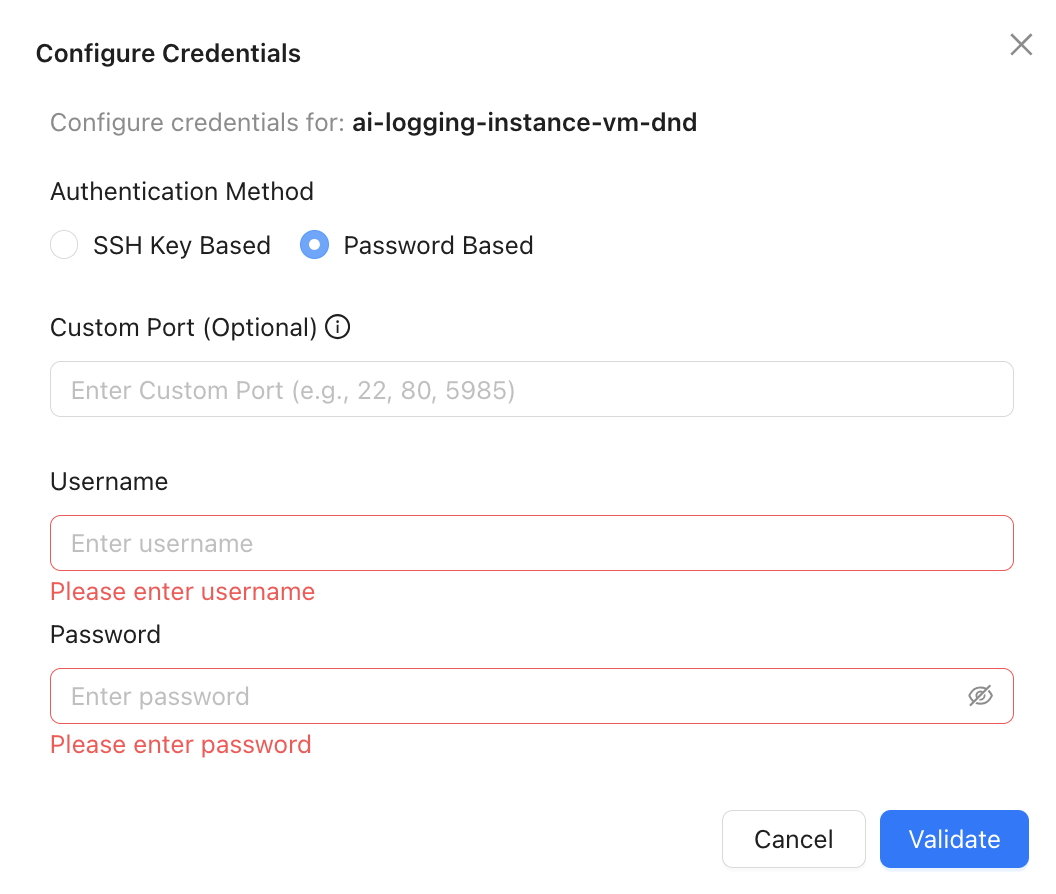
After Validate completes successfully, the VM’s credential status in the table should show as configured, and you can include that VM in the assistant’s troubleshooting scope.
Resource Monitoring, Kubernetes Management, and other capabilities are toggled on the same Add Capabilities & Connect Data Sources step. You can enable multiple capabilities for one assistant when each tool’s requirements are satisfied.
When to Use It
- Incident triage when metrics or alerts point to a host or instance.
- Repeated issues where pattern detection across sessions helps.
- Situations where SSH-backed inspection is faster than manual hop-by-hop access.
Related Topics
- AI Assistant Overview
- Resource Monitoring — Metrics and health context before and during incidents.
- Log Analysis — Deep dive into application and system logs.