Knowledge Base
The Knowledge Base allows you to upload documents that your AI assistant can reference when answering questions. All uploaded documents are stored at the workspace level and are available to all AI assistants within the workspace.
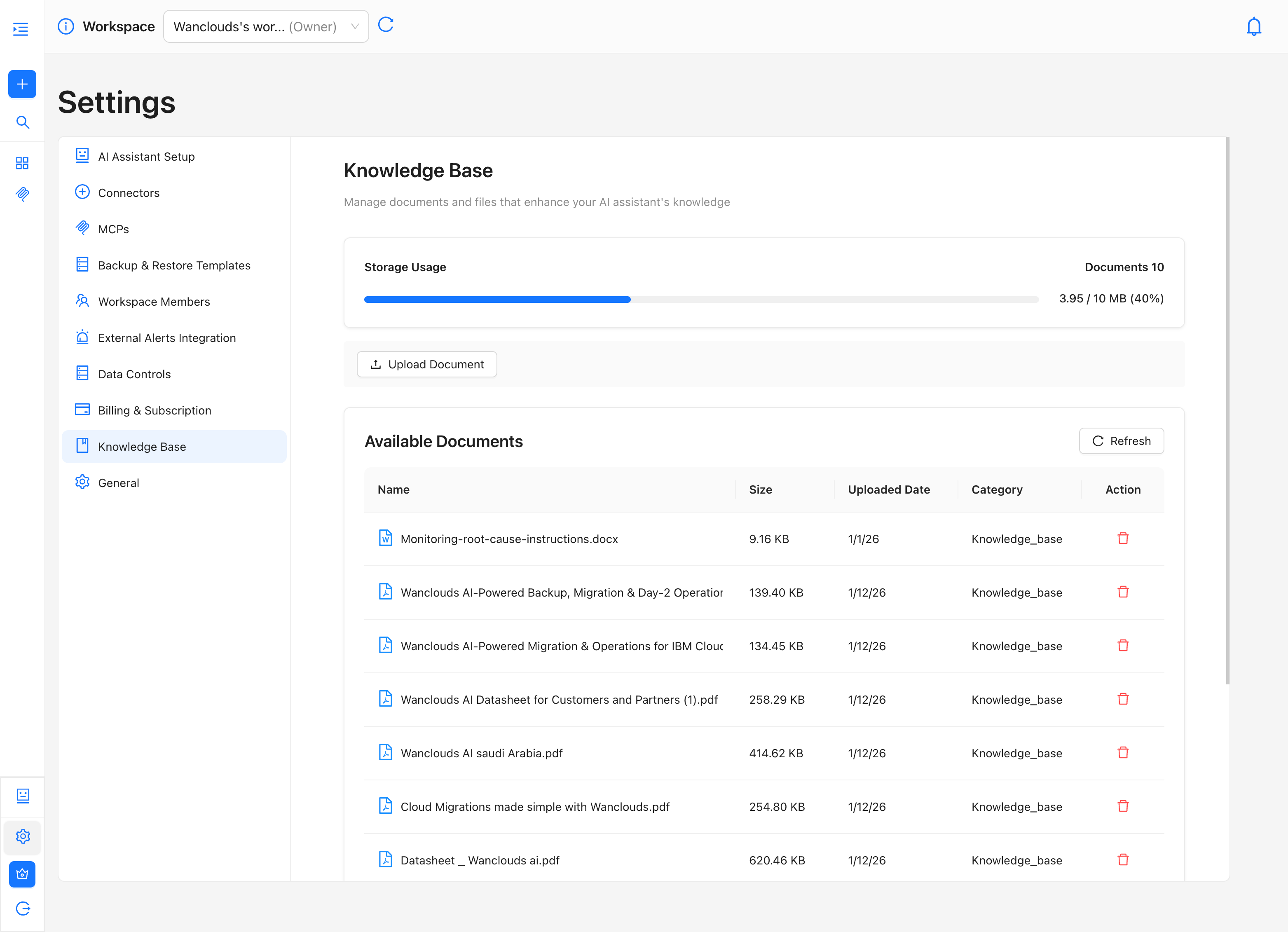
To access the Knowledge Base page, navigate to Settings → Knowledge Base in the sidebar or go directly to /settings/knowledge-base url.
Uploading a Document
To upload a document:
- Navigate to Settings → Knowledge Base in sidebar or go directly to
/settings/knowledge-baseurl. - Click the Upload Document button.
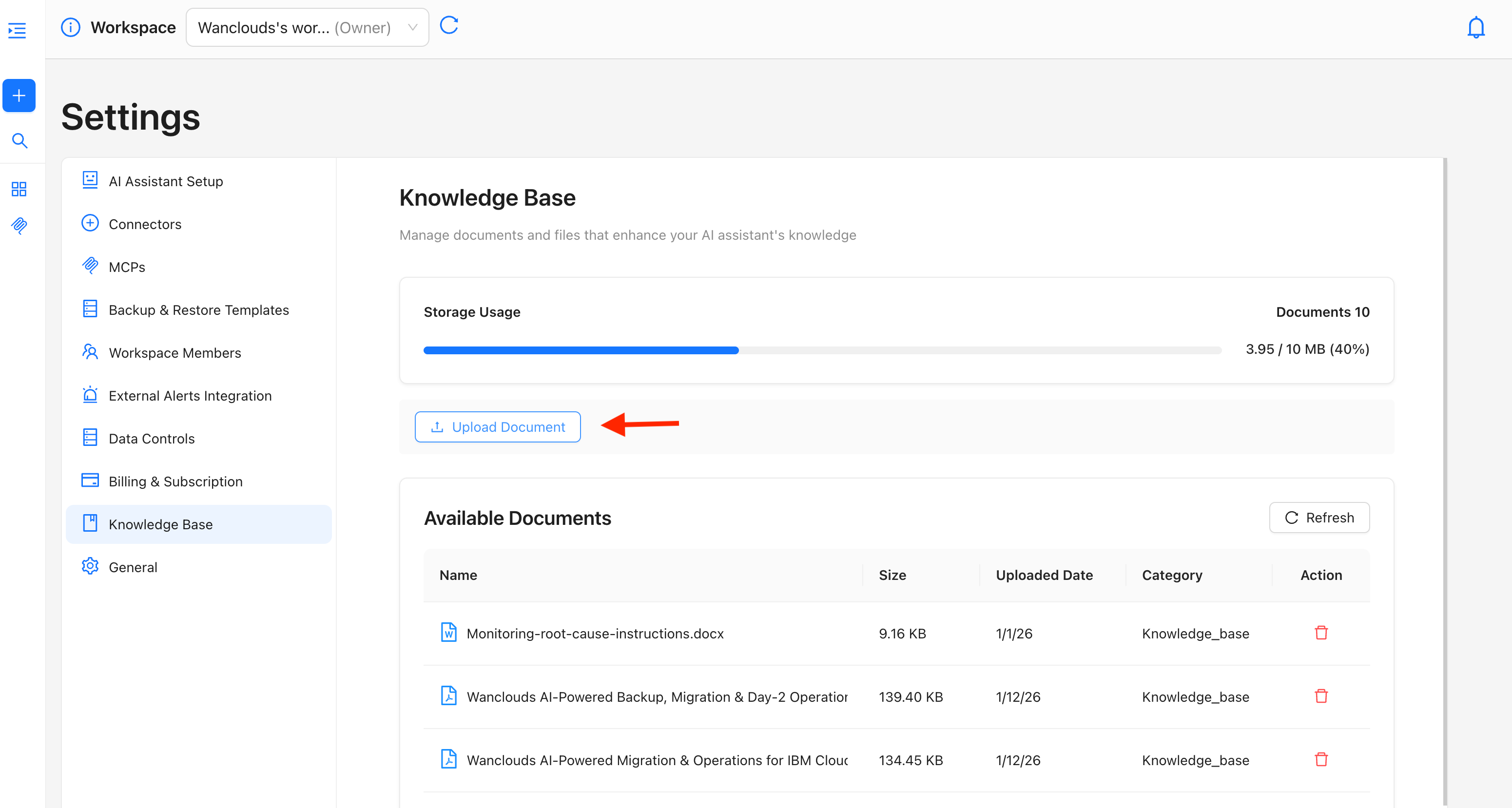
- Select the document to be uploaded from your device.
- The Upload Document modal opens showing 2 fields i-e document name & category.
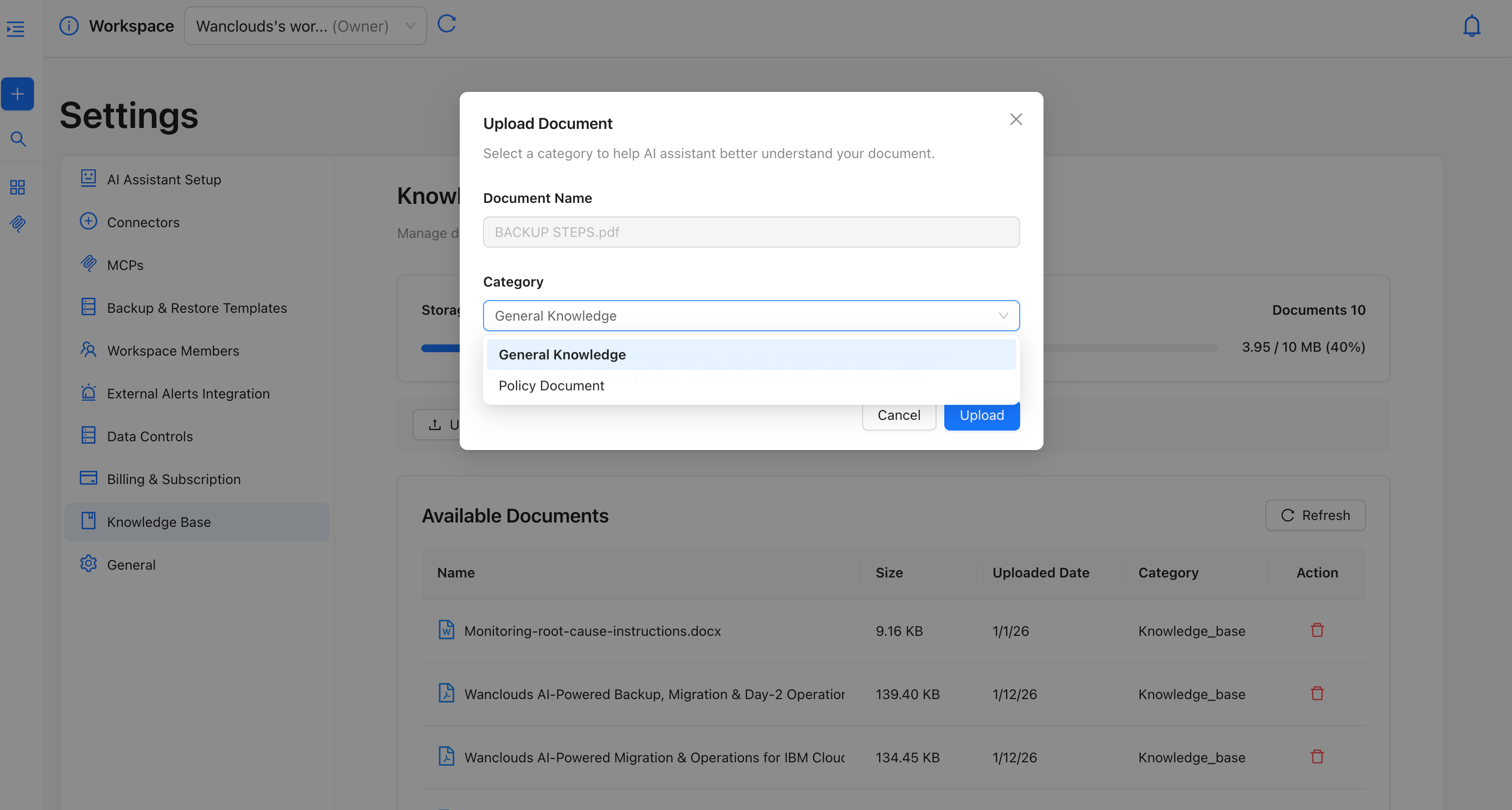
- Select a Category from the dropdown to help the AI assistant better understand the document's context.
- Click on Upload button.
A "File uploaded successfully" confirmation appears once the upload is complete. The document is added to the Available Documents table immediately.
The name of the document cannot be edited once its selected for upload. If you want to change the name of the document, edit it locally in your device and then upload it again.
Document Categories
When uploading, you must select one of the following categories:
- General Knowledge: General-purpose documents such as runbooks, guides, and reference material
- Policy Document: Internal policies, compliance documents, or governance material
Selecting the correct category helps the AI assistant apply the document's content more accurately when responding to relevant queries.
The category assigned at upload is displayed in the Category column of the Available Documents table and cannot be changed after upload. If you need to reassign a category, delete the document and re-upload it with the correct category selected.
Storage Usage
Wanclouds AI allocates a limited storage for Knowledge Base. The Knowledge Base page displays a Storage Usage bar at the top showing your current consumption at a glance.
- Documents: Total number of documents currently uploaded
- Storage bar: Visual progress bar showing storage used vs. available
- Usage figure: Exact storage consumed and your plan's total limit (e.g.
1.56 / 10 MB (16%))
If you are approaching your storage limit, remove unused documents before uploading new ones or contact your plan administrator to increase your allocation.
Storage is counted against your workspace plan's limit. The current limit is 10 MB.
Viewing Available Documents
All uploaded documents are listed in the Available Documents table in the Knowledge Base page with the following data.
- Name: File name of the uploaded document
- Size: File size (displayed in KB or MB)
- Uploaded Date: Date the document was added to the Knowledge Base
- Category: Category assigned at the time of upload
- Action: Delete the document from the Knowledge Base
Use the Refresh button in the top-right corner of the table to reload the document list after making changes.
Removing a Document
To remove a document from the Knowledge Base:
- Locate the document in the Available Documents table.
- Click the red delete icon in the Action column.
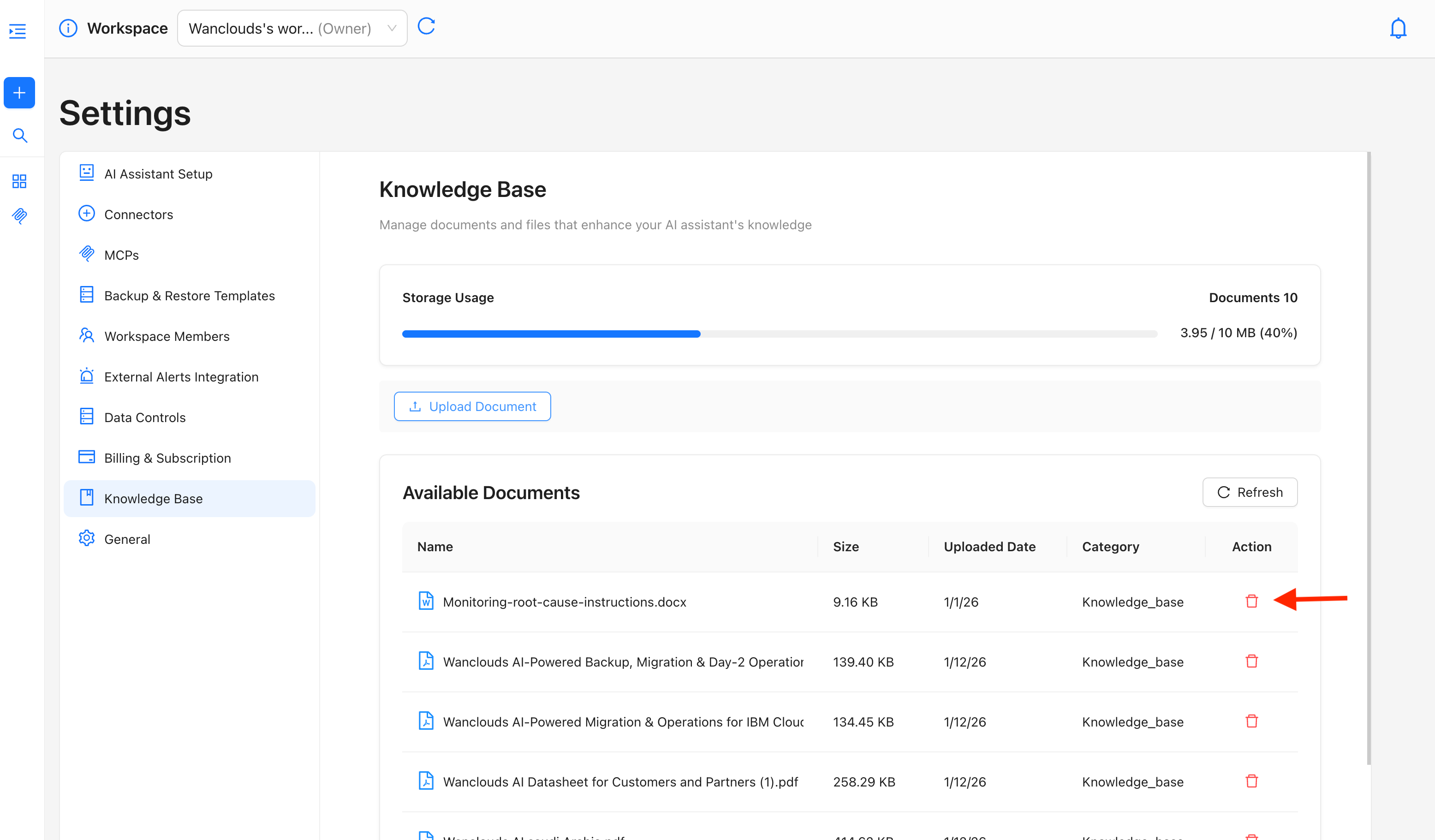
- A Delete File confirmation modal appears with the message: "Are you sure you want to delete this file?"
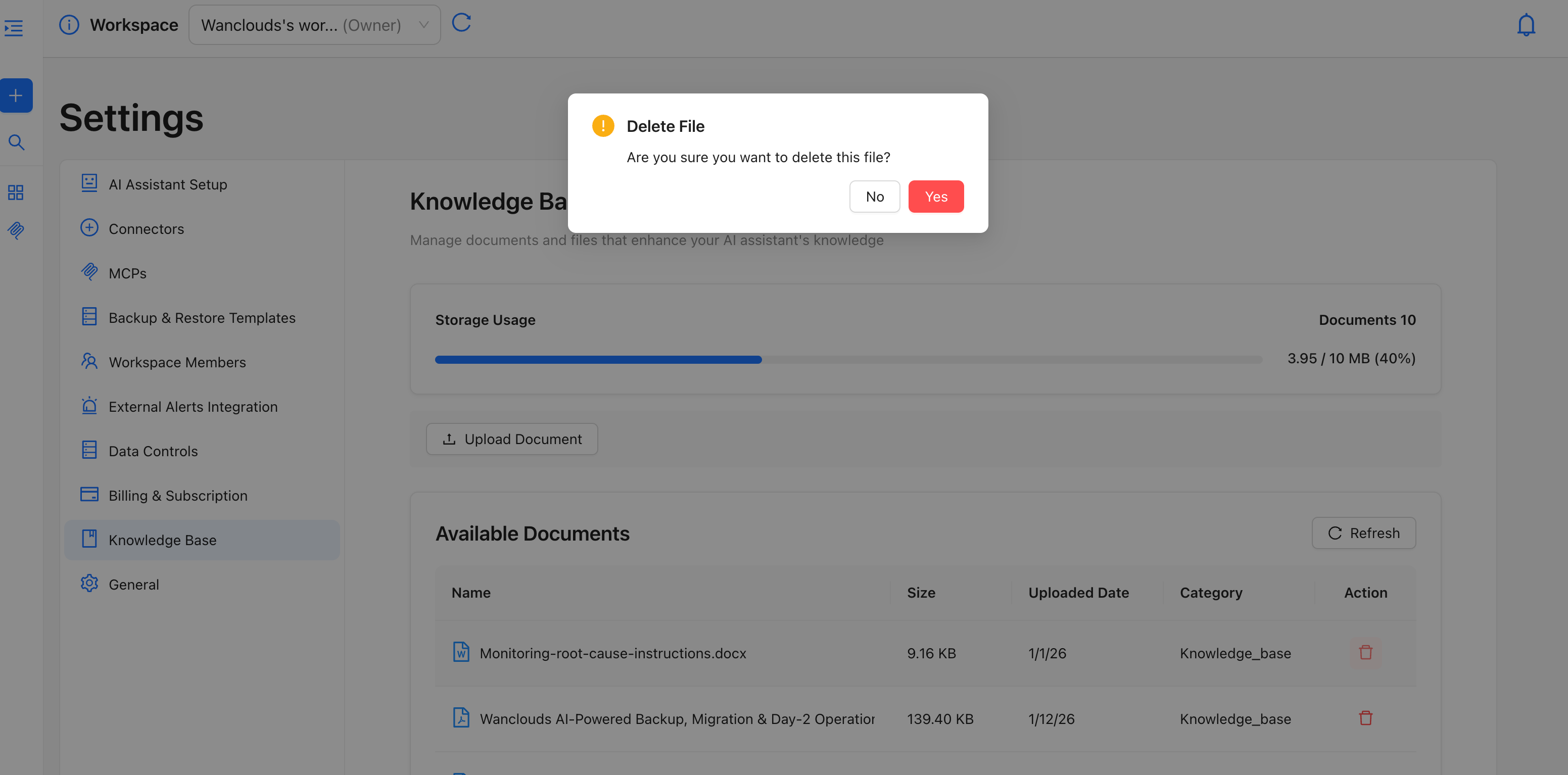
- Click Yes to confirm deletion, or No to cancel and return to the table.
- On clicking Yes, the document is removed immediately and is no longer available to the AI assistant.
Removing a document is permanent. The file is deleted from the Knowledge Base and cannot be recovered. If you need the document again, you will need to re-upload it.
Linking Documents to an AI Assistant
Documents uploaded to the Knowledge Base can be selectively linked to individual AI assistants during the AI Assistant Setup Flow. This allows you to control which documents each assistant has access to, rather than exposing all documents to every assistant.
How to Link Documents During Assistant Setup
- During AI Assistant setup, navigate to the Environment Selection section (step 1).
- The Available Documents table lists all documents currently in your Knowledge Base.
- Check the box next to each document you want to link to this assistant.
- The Selected indicator in the top-right shows the total size of selected documents against your plan limit (e.g.
Selected: 1.32 MB / 10.00 MB). - Use the Upload Document button to add new documents directly from this screen if needed.
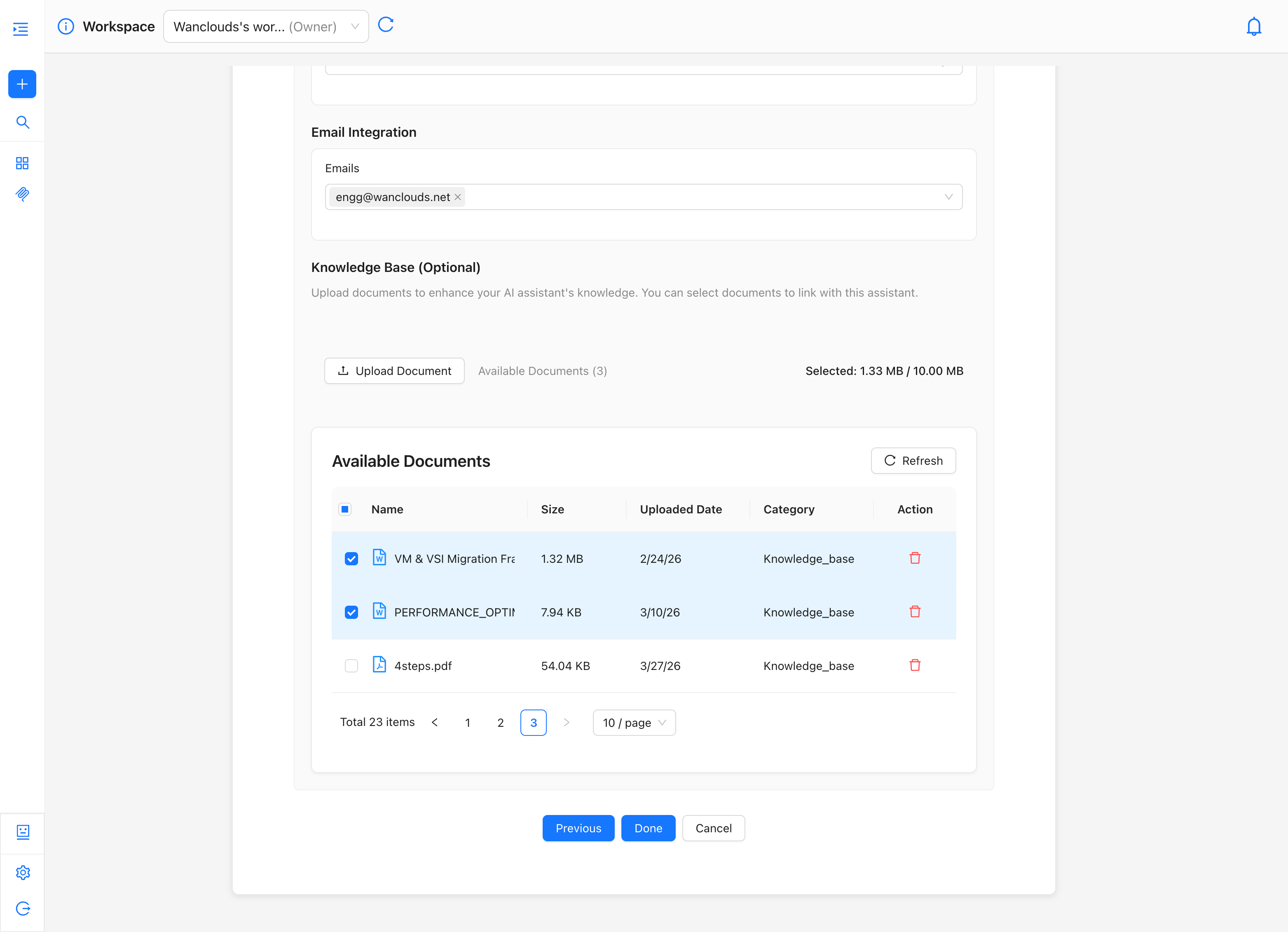
Only the documents you select here will be available to this specific AI assistant. Other documents in the Knowledge Base remain available for selection in other assistants but are not accessible to this one unless explicitly linked.
Pagination
If your Knowledge Base contains more than 10 documents, the table is paginated. Use the page controls at the bottom of the table to browse through all available documents. The default view shows 10 items per page, which can be adjusted using the 10 / page dropdown.