Buy Add-On Credits
Credits power every interaction with the Wanclouds AI Assistant. When your plan's monthly allocation is running low — or you simply need more capacity on demand — the Buy Credit tab lets you top up your credit balance instantly without waiting for your billing cycle to renew.
To access this feature, navigate to Settings → Billing & Subscription → Buy Credit.
The Buy Credits feature is exclusively available on paid plans. Users on the Free plan must upgrade to a paid subscription in order to purchase add-on credits.
How It Works
Purchased credits are added to your account balance immediately upon successful payment. They stack on top of your plan's monthly allocation and are consumed only after your plan credits are exhausted. Credits you top up are also tied to your current billing cycle. If they are not used before the cycle ends, they will expire and do not carry forward.
Top Up Credits
There are two ways to purchase credits: using a Quick Select bundle or entering a Custom Amount.
Option 1 — Quick Select
Choose from four pre-configured bundles for a fast, one-click purchase:
| Price | Credits Received |
|---|---|
| $100 | 8M credits |
| $500 | 40M credits |
| $1,000 | 80M credits |
| $2,000 | 160M credits |
To purchase using a Quick Select bundle:
- Navigate to Settings → Billing & Subscription → Buy Credit.
- Under Quick Select, click the bundle that best fits your needs — the selected card will be highlighted.
- Click Proceed to Payment to initiate the checkout flow.
- Confirm the payment using your saved payment method.
- Once payment is successful, your updated credit balance is reflected immediately.
Option 2 — Custom Amount
If the pre-set bundles do not meet your needs, you can enter any dollar amount manually:
- Navigate to Settings → Billing & Subscription → Buy Credit.
- Scroll to the Custom Amount section.
- Enter your desired dollar amount in the input field.
- Click Proceed to Payment to initiate the checkout flow.
- Confirm the payment using your saved payment method.
- Once payment is successful, credits are added to your balance proportionally based on the standard rate.
Payment is processed using the payment method saved on your account. To review your payment method, go to Settings → Billing & Subscription → Overview
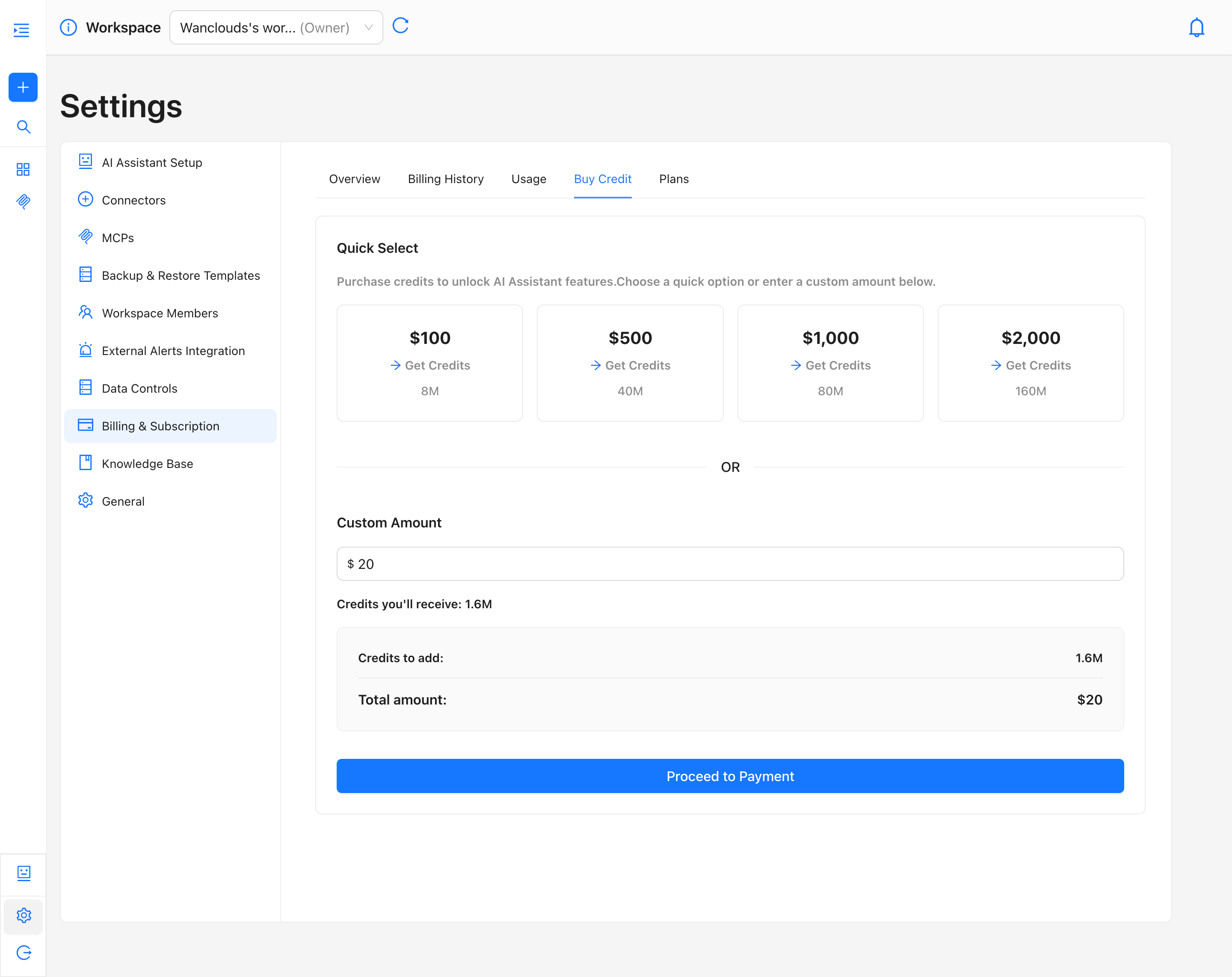
Upon successful payment, the purchased credits are reflected in your balance immediately. You can verify the updated balance at any time from the Overview or Usage tabs.
Checking Your Credit Balance
Your current credit balance is always visible in Settings → Billing & Subscription → Overview under the Credit Usage panel, which displays:
- Total — combined credits from your plan allocation and any purchased top-ups.
- Used — credits consumed in the current billing cycle.
- Remaining — credits still available for use, shown in green.
Use the Refresh button on the Overview tab to pull the latest balance in real time after a purchase.